
A one-hour meeting ends, and three people walked away with three different memories of who agreed to do what. Nobody wrote it down in real time, the recording sits unwatched in a shared drive, and by the following week, half the action items have quietly evaporated.
This guide builds an automation that turns a meeting recording into a clean, organized page in Notion — a written summary and a clear list of action items — without anyone needing to relisten to the recording or type a single note. The moment a recording gets uploaded to a Google Drive folder, this workflow transcribes it, extracts what actually needs to happen next, and files it away automatically.
This is also a slightly more advanced build than a single-API workflow, since it chains two separate AI services together — one that turns speech into text, and a second one that reads that text and pulls out the action items. This guide's specific technical focus is exactly that: how to chain multiple AI APIs together reliably, and how to handle the fact that transcribing audio can take a while without your workflow timing out halfway through.
Every step below is written for someone who has never opened n8n before.
What This Automation Actually Does
Here's the short version before the steps begin:
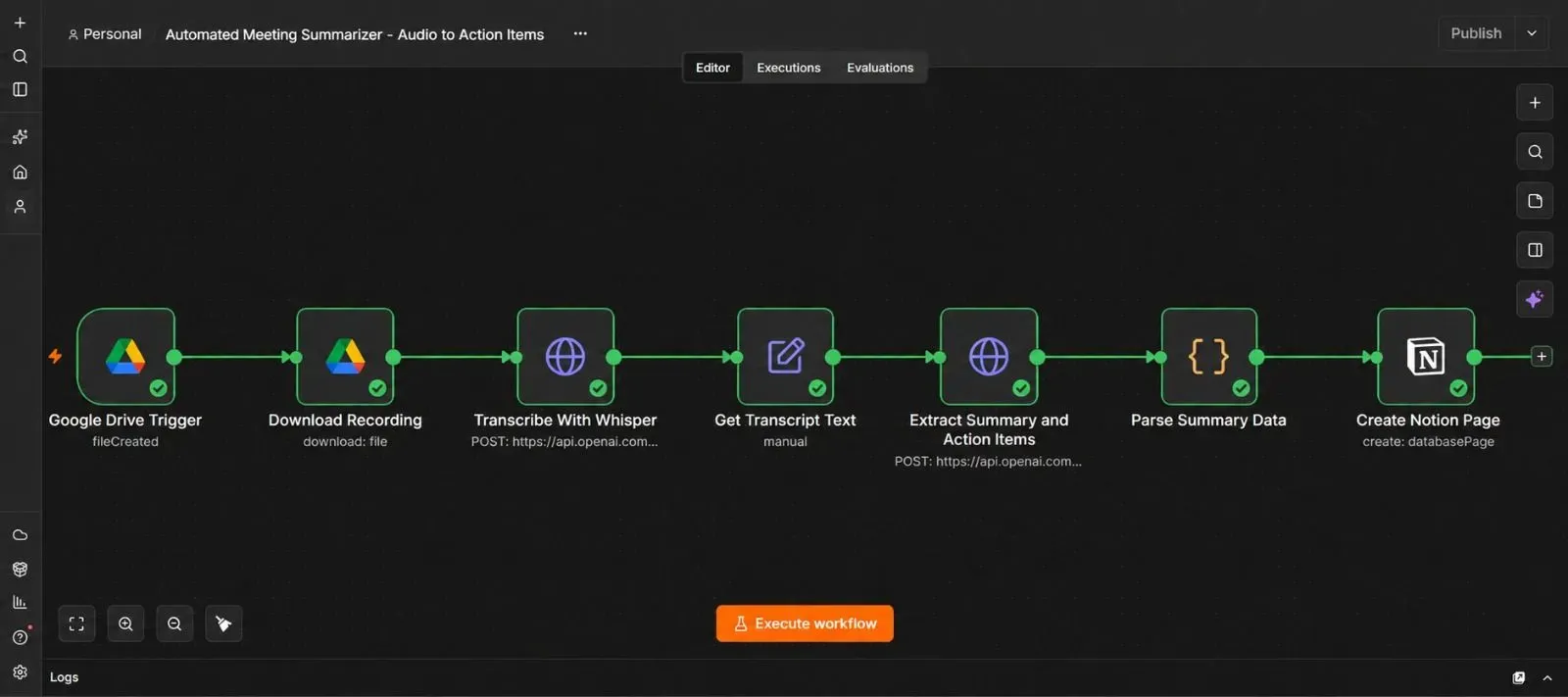
A meeting recording gets uploaded to a Google Drive folder → n8n notices the new file → n8n sends the audio to OpenAI's Whisper API to get a text transcript → n8n sends that transcript to GPT with instructions to extract a summary and action items as structured data → n8n creates a new page in Notion containing all of it.
Why This Workflow Chains Two Different AI Services
It's worth understanding why this automation doesn't just use one AI model to do everything in a single step.
Whisper is built specifically to turn audio into accurate text — that's its entire job, and it's very good at it. But Whisper only returns a transcript; it doesn't understand meeting context, and it won't tell you who agreed to send a proposal by Friday. GPT, on the other hand, is much better at reading a block of text and reasoning about what matters in it — but it can't listen to audio at all.
Chaining them together means each service does the one thing it's actually built for, and the output of the first (a transcript) becomes the input to the second (a structured summary). This is a common and reliable pattern once you understand it: treat each AI service as one link in a chain, not one tool that does everything.
What You'll Need Before You Start
| Requirement | What it's for | Where to get it |
|---|---|---|
| A Google Drive folder for recordings | Where meeting recordings get uploaded | Your existing Google Drive account |
| An OpenAI API key | Runs both Whisper (transcription) and GPT (summarization) | platform.openai.com |
| A Notion account and integration | Stores the final summary and action items | notion.so |
| An n8n instance (Cloud or self-hosted) | Runs the automation | n8n.io |
Step 1 — Create a Google Drive Folder for Recordings
- In Google Drive, create a new folder named something like "Meeting Recordings."
- Note its folder ID from the URL — it's the long string of characters after
/folders/when you open it.
Step 2 — Get Your OpenAI API Key
- Go to platform.openai.com, sign in, and open Settings → API keys.
- Click Create new secret key, and copy it somewhere safe.
Step 3 — Set Up Your Notion Database
- In Notion, create a new Database — Table named "Meeting Summaries."
- Add these columns:
Title(already exists by default),Date,Summary(text),Action Items(text),Recording Link(URL). - Go to notion.so/my-integrations, click New integration, name it "Meeting Summarizer," and copy the generated API key.
- Back in your database, click the ••• menu in the top right, go to Connections, and add your new integration so it's allowed to write to this database.
Step 4 — Connect Google Drive to n8n
- In n8n, click Credentials, then New.
- Search for Google Drive OAuth2 API, and follow the sign-in steps to connect your Google account.
- Save the credential with a clear name, like "Meeting Recordings Drive."
Step 5 — Add the Google Drive Trigger
- Open a new, blank workflow, click Add first step, search for "Google Drive Trigger," and add it.
- Select your credential from Step 4.
- Set the trigger event to File Created.
- Set the Watch Folder to the folder you created in Step 1.
- Set a reasonable poll interval, such as every 5 minutes.
Step 6 — Download the Audio File
The trigger only tells n8n a file exists — it doesn't hand over the actual audio yet.
- Click +, search for "Google Drive," and add it. Name it "Download Recording."
- Set the Operation to Download.
- Set the File ID using the ID from the trigger's output.
- Test the step. Check the Binary tab in the output — you should see the audio file attached there.
Step 7 — Send the Audio to Whisper for Transcription
Unlike a PDF sent to certain AI APIs as Base64 text, Whisper's API accepts the audio file directly as an uploaded file — no text conversion needed here, which is a useful contrast to keep in mind if you've built file-processing workflows before.
- Click +, search for "HTTP Request," and add it. Name it "Transcribe With Whisper."
- Set the method to POST.
- Set the URL to
https://api.openai.com/v1/audio/transcriptions. - Add an Authorization header set to
Bearerfollowed by your OpenAI API key. - Turn on Send Body, and set the body type to Form-Data (also called multipart form data) rather than JSON.
- Add a form-data field named
file, set its type to n8n Binary File, and point it at the binary data from Step 6. - Add another form-data field named
model, with the valuewhisper-1.
Step 8 — Handling Long Transcriptions Without Timing Out
This is the second major focus of this guide, so it deserves its own careful explanation.
Transcribing a five-minute voice memo takes seconds. Transcribing a ninety-minute meeting can take considerably longer, and by default, some tools assume a request will finish quickly and give up waiting before Whisper is actually done.
Here's how to make sure that doesn't happen:
- In the same "Transcribe With Whisper" node, scroll down to Options, and add a Timeout setting. Set it generously — something like
600000(which is 10 minutes, in milliseconds) comfortably covers most meeting-length recordings. - If you're self-hosting n8n, also check your instance's overall execution timeout settings (environment variables like
EXECUTIONS_TIMEOUT_MAXcontrol this) — a generous node-level timeout doesn't help if the entire workflow gets cut off first by a stricter global limit. - If you're on n8n Cloud, check your current plan's execution time limits in n8n's documentation, since these can vary by plan.
💡 What if your transcription provider works differently? Several transcription services submit a job now, and give you the result later instead of making you wait. If you switch to a provider like that, the shape of this section changes slightly:
- Submit the audio, and receive back a job ID instead of a finished transcript.
- Add a Wait node set to something like 20–30 seconds.
- Add an HTTP Request node that checks that job's status.
- Add an IF node: if the status isn't "complete" yet, loop back to the Wait node and check again; if it is complete, continue forward to fetch the finished transcript.
This loop-and-check pattern is the standard way to handle any process that might take an unpredictable amount of time, without tying up a single request for the entire duration.
Step 9 — Extract the Transcript Text
- Add a Set node, name it "Get Transcript Text."
- Create a field called
transcript, pulling in thetextfield from Whisper's response. - Test the step, and confirm you get back the full meeting transcript as plain text.
💡 Worth doing here as a safety net: consider saving this raw transcript somewhere permanent — a Google Doc, a Notion field, or even just a backup column — before moving to the next AI step. If something goes wrong further down the chain, you don't want to have to re-transcribe the whole meeting to try again.
Step 10 — Send the Transcript to GPT for Summarizing
- Click +, search for "HTTP Request," and add it. Name it "Extract Summary and Action Items."
- Set the method to POST, and the URL to
https://api.openai.com/v1/chat/completions. - Add the same Authorization header as Step 7.
- Turn on Send Body, set it to JSON, and build a request instructing GPT to read the transcript and return a strict JSON object containing a
summaryfield and anaction_itemsarray, where each item includes ataskand, if mentioned, anowner:
{
  "model": "gpt-4o-mini",
  "response_format": { "type": "json_object" },
  "messages": [
    {
      "role": "system",
      "content": "You summarize meeting transcripts. Respond ONLY with JSON: {\"summary\": \"...\", \"action_items\": [{\"task\": \"...\", \"owner\": \"...\"}]}. If no owner is mentioned for a task, use \"Unassigned\"."
    },
    {
      "role": "user",
      "content": "{{ $json.transcript }}"
    }
  ]
}
Test the step. You should get back a clean summary and a list of action items with owners assigned where the transcript made that clear.
Step 11 — Parse the Response Safely
- Add a Code node, name it "Parse Summary Data."
- Use this logic, which includes a fallback in case the response is ever malformed:
const rawText = $json.choices[0].message.content;

try {
  const parsed = JSON.parse(rawText);
  const actionItemsText = parsed.action_items
    .map(item => `• ${item.task} (${item.owner})`)
    .join('\n');

  return {
    json: {
      summary: parsed.summary,
      action_items_text: actionItemsText
    }
  };
} catch (error) {
  return {
    json: {
      summary: "Could not parse summary — check the raw transcript.",
      action_items_text: ""
    }
  };
}
Test the step, and confirm you get back a readable summary and a neatly bulleted list of action items.
Step 12 — Create the Notion Page
- Click +, search for "Notion," and add it.
- Connect your integration's API key from Step 3.
- Set the Resource to Database Page, and the Operation to Create.
- Select your "Meeting Summaries" database.
- Map the fields:
Title→ the meeting file's name, or today's dateDate→ today's dateSummary→ yoursummaryfieldAction Items→ youraction_items_textfieldRecording Link→ the file's Google Drive link from the trigger's output
- Test the step, then open Notion to confirm the new page appeared correctly.
Step 13 — Test With a Real Recording
- Upload a short real meeting recording (even a 2–3 minute test recording works fine) to your Google Drive folder.
- Watch the n8n execution log as it moves through each node.
- Confirm the Notion page appears with an accurate summary and sensible action items.
Step 14 — Activate the Workflow
- Click the Active toggle in the top right corner of the n8n canvas.
- Confirm it switches on.
From here, every recording dropped into that Drive folder gets transcribed, summarized, and filed into Notion automatically.
The Downloadable Template
A ready-to-import version of this workflow is included below, with clearly labeled placeholders for your own folder ID, API keys, and Notion database ID.
How to install it:
- Open n8n and start a new, blank workflow.
- Click the three dots menu in the top right corner.
- Select Import from File.
- Choose the downloaded
.jsonfile. - Open each node and connect your own Google Drive, OpenAI, and Notion credentials where the placeholders appear.
{
  "name": "Automated Meeting Summarizer - Audio to Action Items",
  "nodes": [
    {
      "parameters": {
        "triggerOn": "specificFolder",
        "folderToWatch": { "__rl": true, "value": "YOUR_GOOGLE_DRIVE_FOLDER_ID", "mode": "id" },
        "event": "fileCreated",
        "pollTimes": { "item": [{ "mode": "everyMinute" }] }
      },
      "id": "node-drive-trigger",
      "name": "Google Drive Trigger",
      "type": "n8n-nodes-base.googleDriveTrigger",
      "typeVersion": 1,
      "position": [0, 0],
      "credentials": {
        "googleDriveOAuth2Api": {
          "id": "1",
          "name": "Meeting Recordings Drive"
        }
      }
    },
    {
      "parameters": {
        "operation": "download",
        "fileId": { "__rl": true, "value": "={{ $json.id }}", "mode": "id" }
      },
      "id": "node-download-recording",
      "name": "Download Recording",
      "type": "n8n-nodes-base.googleDrive",
      "typeVersion": 3,
      "position": [220, 0],
      "credentials": {
        "googleDriveOAuth2Api": {
          "id": "1",
          "name": "Meeting Recordings Drive"
        }
      }
    },
    {
      "parameters": {
        "method": "POST",
        "url": "https://api.openai.com/v1/audio/transcriptions",
        "sendHeaders": true,
        "headerParameters": {
          "parameters": [
            { "name": "Authorization", "value": "Bearer YOUR_OPENAI_API_KEY" }
          ]
        },
        "sendBody": true,
        "contentType": "multipart-form-data",
        "bodyParameters": {
          "parameters": [
            { "name": "file", "parameterType": "formBinaryData", "inputDataFieldName": "data" },
            { "name": "model", "value": "whisper-1" }
          ]
        },
        "options": {
          "timeout": 600000
        }
      },
      "id": "node-transcribe-whisper",
      "name": "Transcribe With Whisper",
      "type": "n8n-nodes-base.httpRequest",
      "typeVersion": 4.2,
      "position": [440, 0]
    },
    {
      "parameters": {
        "assignments": {
          "assignments": [
            { "id": "t1", "name": "transcript", "value": "={{ $json.text }}", "type": "string" }
          ]
        },
        "options": {}
      },
      "id": "node-get-transcript",
      "name": "Get Transcript Text",
      "type": "n8n-nodes-base.set",
      "typeVersion": 3.4,
      "position": [660, 0]
    },
    {
      "parameters": {
        "method": "POST",
        "url": "https://api.openai.com/v1/chat/completions",
        "sendHeaders": true,
        "headerParameters": {
          "parameters": [
            { "name": "Authorization", "value": "Bearer YOUR_OPENAI_API_KEY" },
            { "name": "Content-Type", "value": "application/json" }
          ]
        },
        "sendBody": true,
        "specifyBody": "json",
        "jsonBody": "={{ JSON.stringify({\n  model: \"gpt-4o-mini\",\n  response_format: { type: \"json_object\" },\n  messages: [\n    {\n      role: \"system\",\n      content: \"You summarize meeting transcripts. Respond ONLY with JSON: {\\\"summary\\\": \\\"...\\\", \\\"action_items\\\": [{\\\"task\\\": \\\"...\\\", \\\"owner\\\": \\\"...\\\"}]}. If no owner is mentioned for a task, use 'Unassigned'.\"\n    },\n    {\n      role: \"user\",\n      content: $json.transcript\n    }\n  ]\n}) }}",
        "options": {
          "timeout": 120000
        }
      },
      "id": "node-extract-summary",
      "name": "Extract Summary and Action Items",
      "type": "n8n-nodes-base.httpRequest",
      "typeVersion": 4.2,
      "position": [880, 0]
    },
    {
      "parameters": {
        "language": "javaScript",
        "jsCode": "const rawText = $json.choices[0].message.content;\n\ntry {\n  const parsed = JSON.parse(rawText);\n  const actionItemsText = parsed.action_items\n    .map(item => `• ${item.task} (${item.owner})`)\n    .join('\\n');\n\n  return {\n    json: {\n      summary: parsed.summary,\n      action_items_text: actionItemsText\n    }\n  };\n} catch (error) {\n  return {\n    json: {\n      summary: \"Could not parse summary — check the raw transcript.\",\n      action_items_text: \"\"\n    }\n  };\n}"
      },
      "id": "node-parse-summary",
      "name": "Parse Summary Data",
      "type": "n8n-nodes-base.code",
      "typeVersion": 2,
      "position": [1100, 0]
    },
    {
      "parameters": {
        "resource": "databasePage",
        "operation": "create",
        "databaseId": { "__rl": true, "value": "YOUR_NOTION_DATABASE_ID", "mode": "id" },
        "title": "={{ $('Google Drive Trigger').first().json.name }}",
        "propertiesUi": {
          "propertyValues": [
            { "key": "Date", "type": "date", "date": "={{ $now.toISODate() }}" },
            { "key": "Summary", "type": "rich_text", "textContent": "={{ $json.summary }}" },
            { "key": "Action Items", "type": "rich_text", "textContent": "={{ $json.action_items_text }}" },
            { "key": "Recording Link", "type": "url", "urlValue": "={{ $('Google Drive Trigger').first().json.webViewLink }}" }
          ]
        }
      },
      "id": "node-create-notion-page",
      "name": "Create Notion Page",
      "type": "n8n-nodes-base.notion",
      "typeVersion": 2.2,
      "position": [1320, 0],
      "credentials": {
        "notionApi": {
          "id": "2",
          "name": "Meeting Summarizer Notion"
        }
      }
    }
  ],
  "connections": {
    "Google Drive Trigger": {
      "main": [[{ "node": "Download Recording", "type": "main", "index": 0 }]]
    },
    "Download Recording": {
      "main": [[{ "node": "Transcribe With Whisper", "type": "main", "index": 0 }]]
    },
    "Transcribe With Whisper": {
      "main": [[{ "node": "Get Transcript Text", "type": "main", "index": 0 }]]
    },
    "Get Transcript Text": {
      "main": [[{ "node": "Extract Summary and Action Items", "type": "main", "index": 0 }]]
    },
    "Extract Summary and Action Items": {
      "main": [[{ "node": "Parse Summary Data", "type": "main", "index": 0 }]]
    },
    "Parse Summary Data": {
      "main": [[{ "node": "Create Notion Page", "type": "main", "index": 0 }]]
    }
  },
  "pinData": {},
  "meta": {
    "instanceId": "meeting-summarizer-template"
  }
}
Common Mistakes to Avoid
- Leaving the Whisper request's timeout at a short default. This is the single most common failure point with longer recordings — the request simply gets cut off before Whisper finishes.
- Sending the audio file as Base64 JSON instead of multipart form-data. Whisper's endpoint expects an actual uploaded file, not an encoded text string — using the wrong format here causes upload errors.
- Not saving the raw transcript anywhere. If the summarization step fails or needs adjusting later, having only the final Notion page means starting the entire (and sometimes costly) transcription step over again.
- Assuming every transcript will produce clearly assigned owners. Some meetings just don't specify who's doing what — the "Unassigned" fallback in Step 10's prompt handles this gracefully instead of leaving a blank field.
- Forgetting to connect the Notion integration to the specific database. A newly created integration can't write anywhere until it's explicitly added under that database's Connections menu.
Frequently Asked Questions
Some AI models are starting to handle both, but purpose-built transcription models like Whisper are typically more accurate at converting speech to text specifically, and separating the two steps also makes it far easier to see exactly where something went wrong if a result looks off.
This depends on the file size and duration limits of whichever transcription API you use — check the current documentation for your provider, since these limits do change over time.
Yes. After Step 11, you could add a step that loops through each action item and creates a corresponding task in a tool like Trello, Asana, or ClickUp, using the same field data.
Add an IF node right after Step 6 checking the file's MIME type, and route anything that isn't an audio format to a separate branch instead of sending it to Whisper.
Yes — both Whisper transcription and GPT summarization are billed per use through OpenAI, and pricing depends on recording length and the amount of text generated. Check OpenAI's current pricing before running this at high volume.
Leave a Comment
Your comment is completely private and secure. We never publish comments publicly on our website. Your message will be sent directly to our team.