
An invoice lands in the accounts inbox as a PDF attachment. Someone opens it, squints at the total, retypes the vendor name, the amount, and the date into a spreadsheet by hand, and moves on to the next one. Multiply that by every supplier, every month, and it's easy to lose an entire afternoon to typing numbers that were already sitting there in the email the whole time.
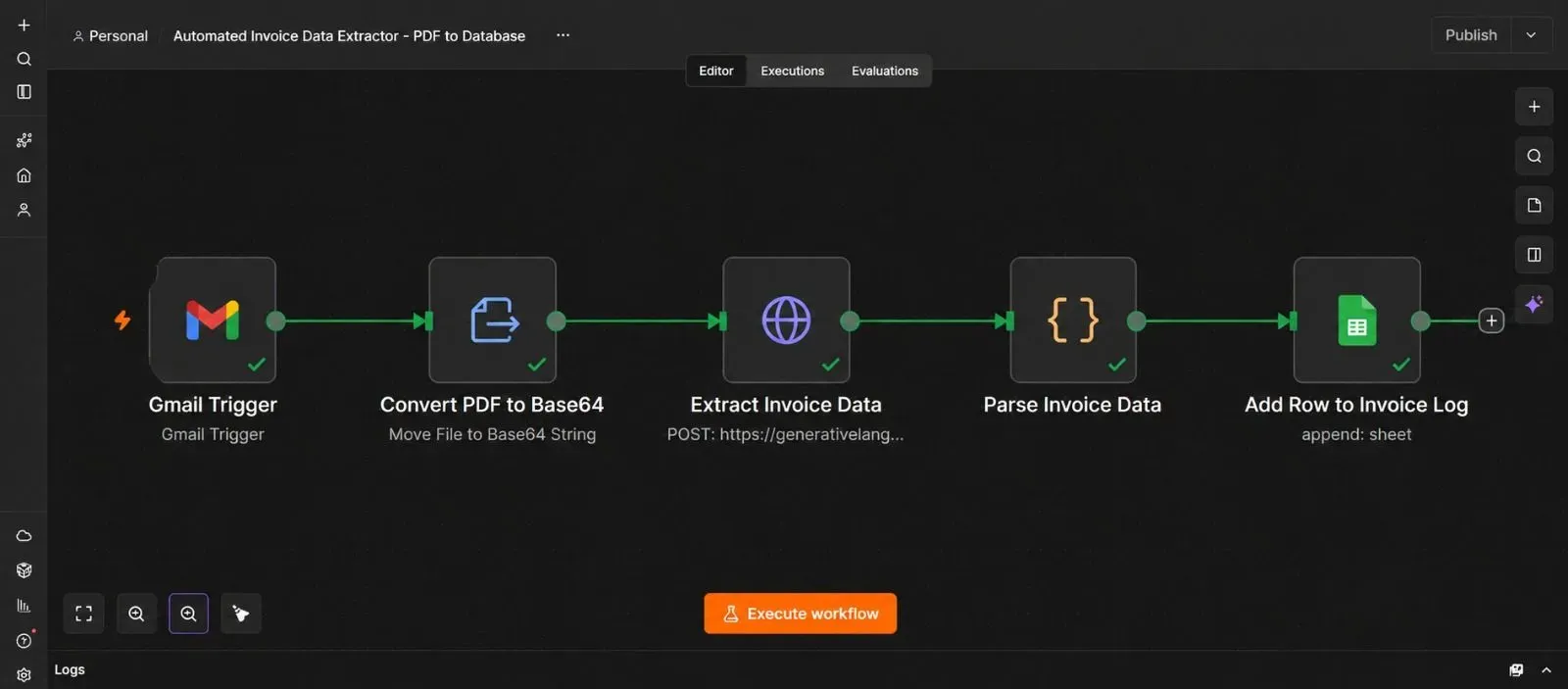
This guide builds an automation that removes that step entirely. The moment an email with a PDF invoice arrives, n8n reads the file, pulls out the vendor name, amount, and date using an AI model, and drops that information straight into a Google Sheet — no retyping required.
This guide also has a specific technical focus worth understanding properly: how n8n handles file attachments, and why they need to be converted to a text format called Base64 before an API can read them. This trips up a lot of people building their first file-processing workflow, so it gets its own detailed section below.
Every step is written for someone who has never opened n8n before.
What This Automation Actually Does
Here's the short version before the steps begin:
An email with a PDF attachment arrives → n8n checks that it's actually a PDF → n8n converts that PDF into a format an AI model can read → the AI model reads the invoice and returns the vendor, amount, and date as clean data → n8n adds that data as a new row in your spreadsheet.
What You'll Need Before You Start
| Requirement | What it's for | Where to get it |
|---|---|---|
| An inbox that receives invoices (Gmail in this guide) | The source of incoming PDFs | Your existing Gmail account |
| A Gemini API key | Reads the invoice and extracts the data | aistudio.google.com |
| An n8n instance (Cloud or self-hosted) | Runs the automation | n8n.io |
| A Google Sheet | Stores the extracted invoice data | sheets.google.com |
Step 1 — Set Up Your Spreadsheet
- Go to sheets.google.com and create a new blank spreadsheet.
- Name it something like "Invoice Log."
- In the first row, add column headers:
Vendor,Amount,Invoice Date,Received Date,Sender Email. - Keep this spreadsheet's tab open — you'll connect it directly in Step 9.
Step 2 — Get Your Gemini API Key
- Go to aistudio.google.com and sign in with your Google account.
- Click Get API key, then Create API key.
- Copy the key somewhere safe — you'll paste it into n8n in Step 7.
Step 3 — Connect Gmail to n8n
- In n8n, click Credentials, then New.
- Search for Gmail OAuth2 API, and select it.
- Sign in with the Gmail account your invoices arrive in, and approve access.
- Save the credential with a name like "Invoices Inbox Gmail."
Step 4 — Add the Gmail Trigger and Download Attachments
- Open a new, blank workflow, click Add first step, search for "Gmail Trigger," and add it.
- Select your credential from Step 3.
- Set Trigger On to Message Received.
- Under Filters, you can narrow this down with a Gmail search query like
has:attachment filename:pdf, so the trigger only fires for emails that actually contain a PDF. - Scroll to Options, and turn on Download Attachments. This is an easy setting to miss, and without it, n8n only sees the email's text — the actual PDF file never gets pulled in.
Step 5 — Confirm the Attachment Actually Arrived
Before building anything further, it's worth checking exactly what n8n received.
- Test the trigger using a real email with a PDF attached.
- Look at the node's output panel, and click the Binary tab (not the JSON tab). You should see an entry like
attachment_0, showing the file name and file type.
This is your first look at something important: n8n stores files separately from regular data. Regular fields like the sender's email or subject line live under JSON. The actual file lives under Binary. Keeping this distinction straight is the key to everything else in this guide.
Step 6 — Understanding Binary Data (Read This Before Continuing)
This section is the actual focus of this guide, so it's worth slowing down here even if you're eager to keep clicking.
Every item that moves through an n8n workflow can carry two separate things at once:
- JSON data — normal fields like names, numbers, and text, which any node can read and use directly.
- Binary data — actual files, like PDFs or images, stored as raw bytes under a property name like
attachment_0.
Here's the part that catches people out: most APIs, including AI services like Gemini, don't accept raw binary data. They expect a request written entirely in text — specifically JSON. A PDF's raw bytes can't be dropped directly into a JSON message the way a name or number can.
The solution is a format called Base64. Base64 takes any file's raw bytes and re-encodes them as a long string made only of ordinary text characters — letters, numbers, and a few symbols. It looks something like this (shortened for readability):
JVBERi0xLjQKJcOkw7zDtsO...That string is safe to include inside a normal JSON request, which is exactly what the next step does — turning your binary PDF attachment into a Base64 text string an AI model can actually receive.
Step 7 — Convert the PDF Attachment to Base64
- Click + after the Gmail Trigger, search for "Extract From File," and add it. Name it "Convert PDF to Base64."
- Set the Operation to Move File to Base64String (in some n8n versions, this node is labeled "Move Binary Data" instead — look for the option converting binary to a Base64 string field).
- Set the Binary Property Name to
attachment_0, matching what you saw in Step 5's Binary tab. - Set the Destination Key (the new field name that will hold the result) to something clear, like
pdf_base64. - Test the step. Under the JSON tab this time (not Binary), you should now see a
pdf_base64field containing that long text string from Step 6.
💡 One detail worth remembering: the Base64 string you get here is the raw encoded data only. Some tools expect it wrapped with a prefix like data:application/pdf;base64, in front of it (common when embedding files in a webpage), while APIs like Gemini expect just the raw string with no prefix at all. Keep this in mind if a later step seems to reject a file that looks otherwise correct.
Step 8 — Send the Invoice to Gemini for Reading
- Click +, search for "HTTP Request," and add it. Name it "Extract Invoice Data."
- Set the method to POST.
- Set the URL to:
https://generativelanguage.googleapis.com/v1beta/models/gemini-2.0-flash:generateContent - Add a query parameter named
key, with your Gemini API key from Step 2. - Turn on Send Body, set it to JSON, and build a request that includes your PDF as inline document data, plus a strict schema so the reply comes back clean and structured:
{
  "contents": [
    {
      "parts": [
        { "text": "Extract the vendor name, total amount, and invoice date from this document. Return only the requested fields." },
        {
          "inline_data": {
            "mime_type": "application/pdf",
            "data": "{{ $json.pdf_base64 }}"
          }
        }
      ]
    }
  ],
  "generationConfig": {
    "responseMimeType": "application/json",
    "responseSchema": {
      "type": "OBJECT",
      "properties": {
        "vendor": { "type": "STRING" },
        "amount": { "type": "STRING" },
        "invoice_date": { "type": "STRING" }
      },
      "required": ["vendor", "amount", "invoice_date"]
    }
  }
}
Test the step using a real invoice PDF. Gemini should return a clean JSON reply containing the vendor, amount, and date it found on the document.
Step 9 — Parse the Response and Add It to Your Sheet
- Add a Code node, name it "Parse Invoice Data."
- Use this logic to safely pull the fields out of Gemini's nested reply:
const rawText = $json.candidates[0].content.parts[0].text;

try {
  const parsed = JSON.parse(rawText);
  return {
    json: {
      vendor: parsed.vendor,
      amount: parsed.amount,
      invoice_date: parsed.invoice_date,
      received_date: new Date().toISOString().split('T')[0],
      sender_email: $('Gmail Trigger').first().json.from.value[0].address
    }
  };
} catch (error) {
  return {
    json: {
      vendor: "Needs manual review",
      amount: "",
      invoice_date: "",
      received_date: new Date().toISOString().split('T')[0],
      sender_email: $('Gmail Trigger').first().json.from.value[0].address
    }
  };
}- Click +, search for "Google Sheets," and add it.
- Connect your Google account, select your spreadsheet from Step 1, and set the Operation to Append.
- Map each column (
Vendor,Amount,Invoice Date,Received Date,Sender Email) to the matching field from the previous step. - Test the step, then check your spreadsheet — a new row should appear with the invoice details filled in.
Step 10 — Handle Emails With More Than One Invoice Attached
Some emails arrive with two or three invoices attached at once, which show up as attachment_0, attachment_1, attachment_2, and so on.
- If this happens regularly in your inbox, add a Split Out node right after the Gmail Trigger, splitting on the binary property list rather than a JSON field.
- This turns one email with multiple attachments into multiple separate items, each carrying one PDF — so every invoice runs through the Base64 conversion, Gemini extraction, and spreadsheet steps individually, instead of only the first attachment ever getting processed.
This is easy to skip when you're first testing with single-invoice emails, and easy to forget until a multi-invoice email quietly only logs one line instead of three.
Step 11 — Test With a Real Invoice Email
- Forward or receive a genuine invoice email into your connected inbox.
- Watch the n8n execution log as it moves through each node.
- Check the Binary tab at the Gmail Trigger step, the JSON tab at the Base64 conversion step, and the final row in your spreadsheet.
If the Gemini step returns an error mentioning the file format, double-check that the mime_type in Step 8 matches the actual file type, and that the Base64 string has no extra prefix attached to it, per the note in Step 7.
Step 12 — Activate the Workflow
- Click the Active toggle in the top right corner of the n8n canvas.
- Confirm it switches on.
From here, every new invoice email gets read and logged automatically, with no one needing to open a single PDF by hand.
The Downloadable Template
A ready-to-import version of this workflow is included below, with clearly labeled placeholders for your own API key and spreadsheet ID.
How to install it:
- Open n8n and start a new, blank workflow.
- Click the three dots menu in the top right corner.
- Select Import from File.
- Choose the downloaded
.jsonfile. - Open each node and connect your own Gmail, Gemini, and Google Sheets credentials where the placeholders appear.
{
  "name": "Automated Invoice Data Extractor - PDF to Database",
  "nodes": [
    {
      "parameters": {
        "pollTimes": { "item": [{ "mode": "everyMinute" }] },
        "simple": false,
        "filters": {
          "q": "has:attachment filename:pdf"
        },
        "options": {
          "downloadAttachments": true
        }
      },
      "id": "node-gmail-trigger",
      "name": "Gmail Trigger",
      "type": "n8n-nodes-base.gmailTrigger",
      "typeVersion": 1.2,
      "position": [0, 0],
      "credentials": {
        "gmailOAuth2": {
          "id": "1",
          "name": "Invoices Inbox Gmail"
        }
      }
    },
    {
      "parameters": {
        "operation": "binaryToPropery",
        "binaryPropertyName": "attachment_0",
        "destinationKey": "pdf_base64"
      },
      "id": "node-convert-base64",
      "name": "Convert PDF to Base64",
      "type": "n8n-nodes-base.extractFromFile",
      "typeVersion": 1,
      "position": [220, 0]
    },
    {
      "parameters": {
        "method": "POST",
        "url": "https://generativelanguage.googleapis.com/v1beta/models/gemini-2.0-flash:generateContent",
        "sendQuery": true,
        "queryParameters": {
          "parameters": [
            { "name": "key", "value": "YOUR_GEMINI_API_KEY" }
          ]
        },
        "sendBody": true,
        "specifyBody": "json",
        "jsonBody": "={{ JSON.stringify({\n  contents: [\n    {\n      parts: [\n        { text: \"Extract the vendor name, total amount, and invoice date from this document. Return only the requested fields.\" },\n        {\n          inline_data: {\n            mime_type: \"application/pdf\",\n            data: $json.pdf_base64\n          }\n        }\n      ]\n    }\n  ],\n  generationConfig: {\n    responseMimeType: \"application/json\",\n    responseSchema: {\n      type: \"OBJECT\",\n      properties: {\n        vendor: { type: \"STRING\" },\n        amount: { type: \"STRING\" },\n        invoice_date: { type: \"STRING\" }\n      },\n      required: [\"vendor\", \"amount\", \"invoice_date\"]\n    }\n  }\n}) }}"
      },
      "id": "node-extract-invoice-data",
      "name": "Extract Invoice Data",
      "type": "n8n-nodes-base.httpRequest",
      "typeVersion": 4.2,
      "position": [440, 0]
    },
    {
      "parameters": {
        "language": "javaScript",
        "jsCode": "const rawText = $json.candidates[0].content.parts[0].text;\n\ntry {\n  const parsed = JSON.parse(rawText);\n  return {\n    json: {\n      vendor: parsed.vendor,\n      amount: parsed.amount,\n      invoice_date: parsed.invoice_date,\n      received_date: new Date().toISOString().split('T')[0],\n      sender_email: $('Gmail Trigger').first().json.from.value[0].address\n    }\n  };\n} catch (error) {\n  return {\n    json: {\n      vendor: \"Needs manual review\",\n      amount: \"\",\n      invoice_date: \"\",\n      received_date: new Date().toISOString().split('T')[0],\n      sender_email: $('Gmail Trigger').first().json.from.value[0].address\n    }\n  };\n}"
      },
      "id": "node-parse-invoice",
      "name": "Parse Invoice Data",
      "type": "n8n-nodes-base.code",
      "typeVersion": 2,
      "position": [660, 0]
    },
    {
      "parameters": {
        "operation": "append",
        "documentId": { "__rl": true, "value": "YOUR_GOOGLE_SHEET_ID", "mode": "id" },
        "sheetName": { "__rl": true, "value": "Sheet1", "mode": "name" },
        "columns": {
          "mappingMode": "defineBelow",
          "value": {
            "Vendor": "={{ $json.vendor }}",
            "Amount": "={{ $json.amount }}",
            "Invoice Date": "={{ $json.invoice_date }}",
            "Received Date": "={{ $json.received_date }}",
            "Sender Email": "={{ $json.sender_email }}"
          }
        },
        "options": {}
      },
      "id": "node-append-sheet",
      "name": "Add Row to Invoice Log",
      "type": "n8n-nodes-base.googleSheets",
      "typeVersion": 4.5,
      "position": [880, 0],
      "credentials": {
        "googleSheetsOAuth2Api": {
          "id": "2",
          "name": "Invoice Log Google Sheet"
        }
      }
    }
  ],
  "connections": {
    "Gmail Trigger": {
      "main": [[{ "node": "Convert PDF to Base64", "type": "main", "index": 0 }]]
    },
    "Convert PDF to Base64": {
      "main": [[{ "node": "Extract Invoice Data", "type": "main", "index": 0 }]]
    },
    "Extract Invoice Data": {
      "main": [[{ "node": "Parse Invoice Data", "type": "main", "index": 0 }]]
    },
    "Parse Invoice Data": {
      "main": [[{ "node": "Add Row to Invoice Log", "type": "main", "index": 0 }]]
    }
  },
  "pinData": {},
  "meta": {
    "instanceId": "pdf-invoice-extraction-template"
  }
}
Common Mistakes to Avoid
- Forgetting to turn on "Download Attachments" in the Gmail Trigger. Without it, the binary file never reaches the workflow at all, no matter what happens afterward.
- Sending raw binary data directly into an HTTP Request body. APIs expect text-based JSON, not raw file bytes — the Base64 conversion in Step 7 isn't optional, it's what makes Step 8 possible.
- Mismatching the binary property name. If the Gmail Trigger shows
attachment_0but your conversion node is set to look forattachment, the step will fail to find any file to convert. - Including a Base64 prefix Gemini doesn't expect. Some tools want
data:application/pdf;base64,in front of the string; Gemini'sinline_datafield wants the raw string only. - Assuming every email has exactly one attachment. Step 10 exists specifically because this assumption quietly drops extra invoices without any visible error.
Frequently Asked Questions
A PDF isn't stored as plain text internally — it's a binary file format. Base64 is what allows that binary content to travel safely inside a plain-text JSON request, which most APIs require.
The same approach works. Set the mime_type in Step 8 to match the image type (image/jpeg or image/png), and the rest of the workflow stays the same.
Yes. Add more properties to the responseSchema in Step 8, and add matching columns to both your spreadsheet and the Code node in Step 9.
Review Google's current API terms and data-handling policies for the Gemini model you're using before sending any sensitive financial documents through it, since terms can vary by plan and region.
Yes. Replace the Google Sheets node in Step 9 with an HTTP Request or dedicated node for your billing platform's API — everything before that step stays exactly the same.
Leave a Comment
Your comment is completely private and secure. We never publish comments publicly on our website. Your message will be sent directly to our team.