
A billing complaint sits in the general support inbox for six hours because nobody noticed it between forty other emails about password resets. By the time someone finally reads it, the customer has already emailed twice more, and the tone in that third email is a lot less patient than the first.
This is the exact problem this workflow solves. Every new support email gets read by Google's Gemini API the moment it arrives, sorted into Billing, Tech Support, or Sales, checked for how upset or urgent it sounds, and dropped straight onto the correct team's board — before a human ever opens their inbox.
This guide builds that automation in n8n, step by step, written for someone who has never touched n8n or an AI API before. It also covers the one part that trips up most people building this kind of workflow: getting Gemini to return clean, predictable JSON every single time, instead of a wall of text that breaks your automation halfway through.
What This Automation Actually Does
Here's the short version before the click-by-click steps:
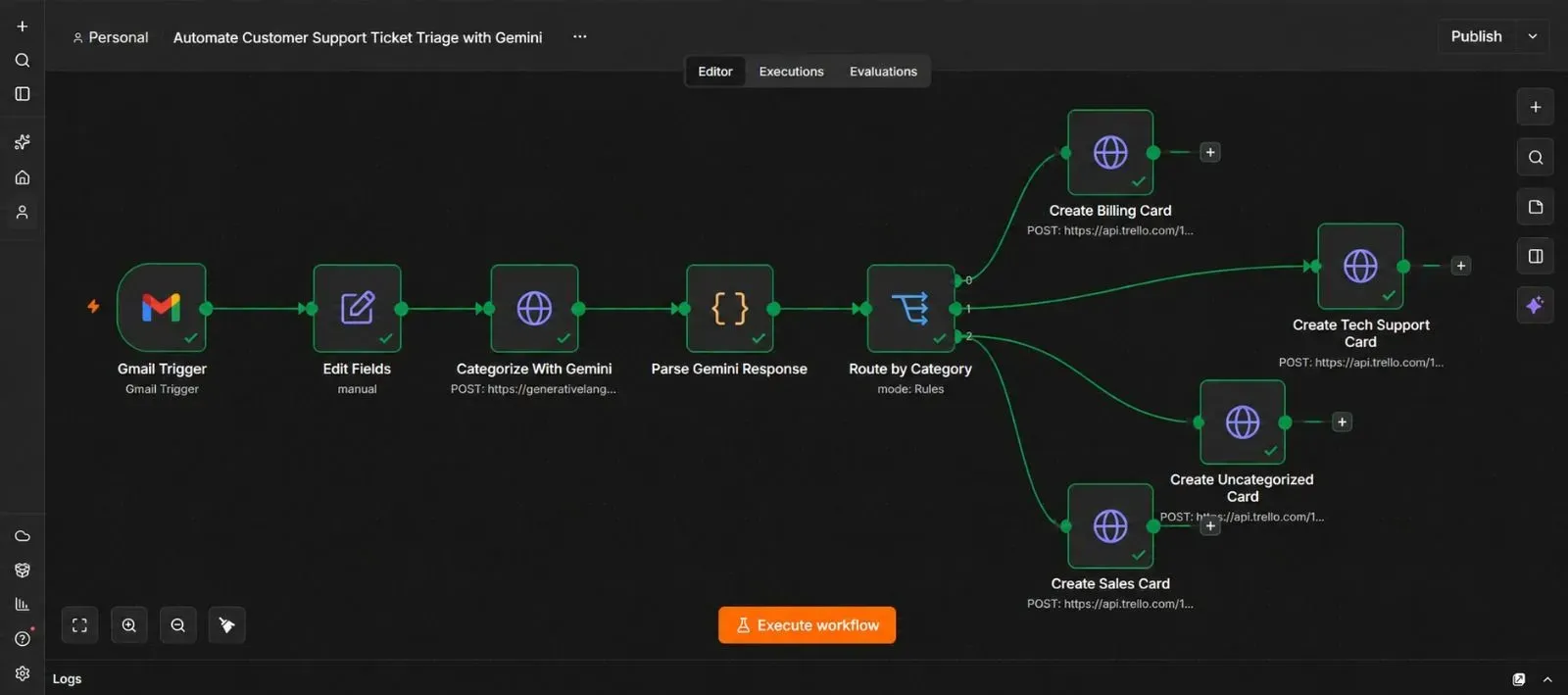
A new email lands in your support inbox → n8n picks it up → n8n sends the email text to Gemini with instructions to return a structured answer → Gemini replies with a category, a sentiment, and a short summary in strict JSON format → n8n reads that JSON and creates a card on the matching department's board.
The whole process usually finishes in a few seconds — long before a support agent would have even scrolled down to see the email.
What You'll Need Before You Start
| Requirement | What it's for | Where to get it |
|---|---|---|
| A support inbox (Gmail in this guide) | The source of incoming tickets | Your existing Gmail/Google Workspace account |
| A Gemini API key | Reads and categorizes each email | aistudio.google.com |
| An n8n instance (Cloud or self-hosted) | Runs the automation | n8n.io |
| A team board with separate lists (Trello in this guide) | Where triaged tickets land | trello.com, or swap in Asana, ClickUp, or your own helpdesk tool |
Set all four of these up first. Stopping halfway through to go create an account breaks your flow more than it saves time.
Step 1 — Get Your Gemini API Key
- Go to aistudio.google.com and sign in with your Google account.
- Click Get API key in the left sidebar.
- Click Create API key, then choose or create a Google Cloud project to attach it to.
- Copy the generated key somewhere safe — you'll paste it into n8n shortly.
Step 2 — Connect Gmail to n8n
- In n8n, click Credentials in the left sidebar, then New.
- Search for Gmail OAuth2 API and select it.
- Follow the on-screen instructions to sign in with the Gmail account your support emails arrive in, and approve access.
- Save the credential with a clear name, such as "Support Inbox Gmail."
Step 3 — Add the Gmail Trigger
This node checks your inbox and starts the workflow the moment a new email arrives.
- Open a new, blank workflow in n8n.
- Click Add first step, search for "Gmail Trigger," and add it.
- Select the credential you created in Step 2.
- Set the Trigger On option to Message Received.
- Under Filters, you can optionally limit this to a specific label (for example, only emails already labeled "Support") if your inbox handles more than support requests.
- Save the workflow.
Step 4 — Pull Out the Email Details You Actually Need
Gmail's trigger returns a lot of technical data along with your email. This step keeps only what matters.
- Click + after the trigger, search for "Edit Fields (Set)," and add it.
- Create three fields:
sender→ mapped from the email's From addresssubject→ mapped from the email's Subjectbody→ mapped from the email's plain text content
- Test the step using a real email already sitting in your inbox, and confirm all three fields come through correctly.
Step 5 — Ask Gemini to Categorize the Email (the Important Part)
This is where the guide's main focus comes in: getting a reliable, structured answer back from an AI model instead of a loose paragraph of text.
Why this step usually goes wrong. If you just ask an AI model to "tell me the category and sentiment," it often replies with something like "Sure! Based on this email, I'd say this is a Billing issue, and the customer sounds frustrated." That sentence is perfectly readable to a person, but n8n can't reliably pull a category out of a sentence — one email might get "Billing," the next might get "This looks like a billing question," and your routing logic breaks.
The fix: force Gemini to return strict JSON, with a defined schema. Gemini's API supports a responseSchema setting that locks the model into a specific structure — it cannot add extra commentary, and it cannot invent new category names you didn't define.
- Click +, search for "HTTP Request," and add it. Name it "Categorize With Gemini."
- Set the method to POST.
- Set the URL to Gemini's generate-content endpoint, replacing the model name if you're using a different Gemini version:
https://generativelanguage.googleapis.com/v1beta/models/gemini-2.0-flash:generateContent - Add a query parameter named
key, with your Gemini API key from Step 1 as the value. - Turn on Send Body, set it to JSON, and build a request that includes:
- Your email's subject and body as the prompt content
- A
generationConfigblock settingresponseMimeTypetoapplication/json - A
responseSchemathat defines exactly three fields:category(one of "Billing," "Tech Support," or "Sales"),sentiment(one of "Positive," "Neutral," "Negative," or "Urgent"), andsummary(a short one-sentence description)
Here's what that request body looks like:
{
  "contents": [
    {
      "parts": [
        {
          "text": "Classify this customer support email.\n\nSubject: {{ $json.subject }}\n\nBody: {{ $json.body }}"
        }
      ]
    }
  ],
  "generationConfig": {
    "responseMimeType": "application/json",
    "responseSchema": {
      "type": "OBJECT",
      "properties": {
        "category": {
          "type": "STRING",
          "enum": ["Billing", "Tech Support", "Sales"]
        },
        "sentiment": {
          "type": "STRING",
          "enum": ["Positive", "Neutral", "Negative", "Urgent"]
        },
        "summary": {
          "type": "STRING"
        }
      },
      "required": ["category", "sentiment", "summary"]
    }
  }
}
Test the step. Gemini's reply will be nested inside candidates[0].content.parts[0].text — and because of the schema, that text will be a clean JSON string every time, with no extra commentary wrapped around it.
Step 6 — Parse Gemini's Answer Into Usable Fields
Gemini's structured reply still arrives as a JSON string sitting inside a longer response object, so one more step turns it into fields n8n can actually route on.
- Add a Code node, name it "Parse Gemini Response."
- Set the language to JavaScript.
- Use this logic, which reads the nested text and safely converts it:
const rawText = $json.candidates[0].content.parts[0].text;

try {
  const parsed = JSON.parse(rawText);
  return {
    json: {
      category: parsed.category,
      sentiment: parsed.sentiment,
      summary: parsed.summary,
      sender: $('Edit Fields').first().json.sender,
      subject: $('Edit Fields').first().json.subject
    }
  };
} catch (error) {
  return {
    json: {
      category: "Uncategorized",
      sentiment: "Unknown",
      summary: "Could not parse Gemini response.",
      sender: $('Edit Fields').first().json.sender,
      subject: $('Edit Fields').first().json.subject
    }
  };
}
That try/catch block matters: even with a schema in place, it's good practice to have a fallback so a single malformed response doesn't stop the whole workflow — the ticket still gets a home instead of silently disappearing.
Test the step, and confirm you get back clean category, sentiment, and summary fields.
Step 7 — Route the Ticket by Category
- Click +, search for "Switch," and add it.
- Set Mode to Rules.
- Create three routing rules, each checking the
categoryfield:- Equals "Billing" → Output 1
- Equals "Tech Support" → Output 2
- Equals "Sales" → Output 3
- Add a fallback output for anything that doesn't match (this catches the "Uncategorized" case from Step 6's error handling).
Step 8 — Create the Ticket on the Correct Board
This example uses Trello with three lists — Billing, Tech Support, and Sales — but the same pattern works with Asana, ClickUp, or a helpdesk tool that has an API.
- After each Switch output, add an HTTP Request node (three total — one per branch), each named for its department, e.g. "Create Billing Card."
- Set the method to POST.
- Set the URL to
https://api.trello.com/1/cards. - Add query parameters:
key→ your Trello API keytoken→ your Trello API tokenidList→ the ID of that department's Trello list (found in Trello under each list's "Copy link," or via Trello's API)
- Add these body fields:
name→ the email subjectdesc→ combine the sender, sentiment, and summary so the card shows everything at a glance
If the sentiment comes back as "Urgent" or "Negative," consider adding a red label to that card automatically, or sending a Slack message alongside it — this is optional, but it's an easy way to make sure upset customers don't sit at the bottom of a list.
Step 9 — Test With a Real Email
- Send yourself (or have a colleague send) three test emails — one clearly about billing, one about a technical problem, and one that sounds like a sales inquiry.
- Watch the n8n execution log as each one runs through the workflow.
- Confirm each email lands on the correct Trello list with an accurate sentiment noted.
If a card lands in the wrong list, check the raw Gemini response first — this almost always traces back to the prompt wording in Step 5, not a routing mistake in the Switch node.
Step 10 — Activate the Workflow
- Click the Active toggle in the top right corner of the n8n canvas.
- Confirm it switches on.
- Leave it running — n8n keeps checking your inbox on its own schedule from now on, no editor window required.
The Downloadable Template
A ready-to-import version of this workflow is included below, so you can skip building every node from scratch. It ships with clearly labeled placeholders for your own API keys and board IDs.
How to install it:
- Open n8n and start a new, blank workflow.
- Click the three dots menu in the top right corner.
- Select Import from File.
- Choose the downloaded .json file.
- Open each node and connect your own Gmail, Gemini, and Trello credentials where the placeholders appear.
{
  "name": "Automate Customer Support Ticket Triage with Gemini",
  "nodes": [
    {
      "parameters": {
        "pollTimes": { "item": [{ "mode": "everyMinute" }] },
        "simple": false,
        "filters": {}
      },
      "id": "node-gmail-trigger",
      "name": "Gmail Trigger",
      "type": "n8n-nodes-base.gmailTrigger",
      "typeVersion": 1.2,
      "position": [0, 0],
      "credentials": {
        "gmailOAuth2": {
          "id": "1",
          "name": "Support Inbox Gmail"
        }
      }
    },
    {
      "parameters": {
        "assignments": {
          "assignments": [
            { "id": "a1", "name": "sender", "value": "={{ $json.from.value[0].address }}", "type": "string" },
            { "id": "a2", "name": "subject", "value": "={{ $json.subject }}", "type": "string" },
            { "id": "a3", "name": "body", "value": "={{ $json.text }}", "type": "string" }
          ]
        },
        "options": {}
      },
      "id": "node-edit-fields",
      "name": "Edit Fields",
      "type": "n8n-nodes-base.set",
      "typeVersion": 3.4,
      "position": [220, 0]
    },
    {
      "parameters": {
        "method": "POST",
        "url": "https://generativelanguage.googleapis.com/v1beta/models/gemini-2.0-flash:generateContent",
        "sendQuery": true,
        "queryParameters": {
          "parameters": [
            { "name": "key", "value": "YOUR_GEMINI_API_KEY" }
          ]
        },
        "sendBody": true,
        "specifyBody": "json",
        "jsonBody": "={{ JSON.stringify({\n  contents: [\n    {\n      parts: [\n        { text: \"Classify this customer support email.\\n\\nSubject: \" + $json.subject + \"\\n\\nBody: \" + $json.body }\n      ]\n    }\n  ],\n  generationConfig: {\n    responseMimeType: \"application/json\",\n    responseSchema: {\n      type: \"OBJECT\",\n      properties: {\n        category: { type: \"STRING\", enum: [\"Billing\", \"Tech Support\", \"Sales\"] },\n        sentiment: { type: \"STRING\", enum: [\"Positive\", \"Neutral\", \"Negative\", \"Urgent\"] },\n        summary: { type: \"STRING\" }\n      },\n      required: [\"category\", \"sentiment\", \"summary\"]\n    }\n  }\n}) }}"
      },
      "id": "node-gemini-categorize",
      "name": "Categorize With Gemini",
      "type": "n8n-nodes-base.httpRequest",
      "typeVersion": 4.2,
      "position": [440, 0]
    },
    {
      "parameters": {
        "language": "javaScript",
        "jsCode": "const rawText = $json.candidates[0].content.parts[0].text;\n\ntry {\n  const parsed = JSON.parse(rawText);\n  return {\n    json: {\n      category: parsed.category,\n      sentiment: parsed.sentiment,\n      summary: parsed.summary,\n      sender: $('Edit Fields').first().json.sender,\n      subject: $('Edit Fields').first().json.subject\n    }\n  };\n} catch (error) {\n  return {\n    json: {\n      category: \"Uncategorized\",\n      sentiment: \"Unknown\",\n      summary: \"Could not parse Gemini response.\",\n      sender: $('Edit Fields').first().json.sender,\n      subject: $('Edit Fields').first().json.subject\n    }\n  };\n}"
      },
      "id": "node-parse-gemini",
      "name": "Parse Gemini Response",
      "type": "n8n-nodes-base.code",
      "typeVersion": 2,
      "position": [660, 0]
    },
    {
      "parameters": {
        "mode": "rules",
        "rules": {
          "values": [
            {
              "conditions": {
                "conditions": [
                  { "leftValue": "={{ $json.category }}", "rightValue": "Billing", "operator": { "type": "string", "operation": "equals" } }
                ]
              },
              "outputKey": "Billing"
            },
            {
              "conditions": {
                "conditions": [
                  { "leftValue": "={{ $json.category }}", "rightValue": "Tech Support", "operator": { "type": "string", "operation": "equals" } }
                ]
              },
              "outputKey": "Tech Support"
            },
            {
              "conditions": {
                "conditions": [
                  { "leftValue": "={{ $json.category }}", "rightValue": "Sales", "operator": { "type": "string", "operation": "equals" } }
                ]
              },
              "outputKey": "Sales"
            }
          ]
        },
        "fallbackOutput": "extra",
        "options": {}
      },
      "id": "node-switch-category",
      "name": "Route by Category",
      "type": "n8n-nodes-base.switch",
      "typeVersion": 3.2,
      "position": [880, 0]
    },
    {
      "parameters": {
        "method": "POST",
        "url": "https://api.trello.com/1/cards",
        "sendQuery": true,
        "queryParameters": {
          "parameters": [
            { "name": "key", "value": "YOUR_TRELLO_API_KEY" },
            { "name": "token", "value": "YOUR_TRELLO_API_TOKEN" },
            { "name": "idList", "value": "YOUR_BILLING_LIST_ID" }
          ]
        },
        "sendBody": true,
        "contentType": "form-urlencoded",
        "bodyParameters": {
          "parameters": [
            { "name": "name", "value": "={{ $json.subject }}" },
            { "name": "desc", "value": "={{ 'From: ' + $json.sender + '\\nSentiment: ' + $json.sentiment + '\\nSummary: ' + $json.summary }}" }
          ]
        }
      },
      "id": "node-create-billing-card",
      "name": "Create Billing Card",
      "type": "n8n-nodes-base.httpRequest",
      "typeVersion": 4.2,
      "position": [1100, -220]
    },
    {
      "parameters": {
        "method": "POST",
        "url": "https://api.trello.com/1/cards",
        "sendQuery": true,
        "queryParameters": {
          "parameters": [
            { "name": "key", "value": "YOUR_TRELLO_API_KEY" },
            { "name": "token", "value": "YOUR_TRELLO_API_TOKEN" },
            { "name": "idList", "value": "YOUR_TECH_SUPPORT_LIST_ID" }
          ]
        },
        "sendBody": true,
        "contentType": "form-urlencoded",
        "bodyParameters": {
          "parameters": [
            { "name": "name", "value": "={{ $json.subject }}" },
            { "name": "desc", "value": "={{ 'From: ' + $json.sender + '\\nSentiment: ' + $json.sentiment + '\\nSummary: ' + $json.summary }}" }
          ]
        }
      },
      "id": "node-create-tech-card",
      "name": "Create Tech Support Card",
      "type": "n8n-nodes-base.httpRequest",
      "typeVersion": 4.2,
      "position": [1100, 0]
    },
    {
      "parameters": {
        "method": "POST",
        "url": "https://api.trello.com/1/cards",
        "sendQuery": true,
        "queryParameters": {
          "parameters": [
            { "name": "key", "value": "YOUR_TRELLO_API_KEY" },
            { "name": "token", "value": "YOUR_TRELLO_API_TOKEN" },
            { "name": "idList", "value": "YOUR_SALES_LIST_ID" }
          ]
        },
        "sendBody": true,
        "contentType": "form-urlencoded",
        "bodyParameters": {
          "parameters": [
            { "name": "name", "value": "={{ $json.subject }}" },
            { "name": "desc", "value": "={{ 'From: ' + $json.sender + '\\nSentiment: ' + $json.sentiment + '\\nSummary: ' + $json.summary }}" }
          ]
        }
      },
      "id": "node-create-sales-card",
      "name": "Create Sales Card",
      "type": "n8n-nodes-base.httpRequest",
      "typeVersion": 4.2,
      "position": [1100, 220]
    },
    {
      "parameters": {
        "method": "POST",
        "url": "https://api.trello.com/1/cards",
        "sendQuery": true,
        "queryParameters": {
          "parameters": [
            { "name": "key", "value": "YOUR_TRELLO_API_KEY" },
            { "name": "token", "value": "YOUR_TRELLO_API_TOKEN" },
            { "name": "idList", "value": "YOUR_UNSORTED_LIST_ID" }
          ]
        },
        "sendBody": true,
        "contentType": "form-urlencoded",
        "bodyParameters": {
          "parameters": [
            { "name": "name", "value": "={{ $json.subject }}" },
            { "name": "desc", "value": "={{ 'From: ' + $json.sender + '\\nCould not auto-categorize. Summary: ' + $json.summary }}" }
          ]
        }
      },
      "id": "node-create-fallback-card",
      "name": "Create Uncategorized Card",
      "type": "n8n-nodes-base.httpRequest",
      "typeVersion": 4.2,
      "position": [1100, 440]
    }
  ],
  "connections": {
    "Gmail Trigger": {
      "main": [[{ "node": "Edit Fields", "type": "main", "index": 0 }]]
    },
    "Edit Fields": {
      "main": [[{ "node": "Categorize With Gemini", "type": "main", "index": 0 }]]
    },
    "Categorize With Gemini": {
      "main": [[{ "node": "Parse Gemini Response", "type": "main", "index": 0 }]]
    },
    "Parse Gemini Response": {
      "main": [[{ "node": "Route by Category", "type": "main", "index": 0 }]]
    },
    "Route by Category": {
      "main": [
        [{ "node": "Create Billing Card", "type": "main", "index": 0 }],
        [{ "node": "Create Tech Support Card", "type": "main", "index": 0 }],
        [{ "node": "Create Sales Card", "type": "main", "index": 0 }],
        [{ "node": "Create Uncategorized Card", "type": "main", "index": 0 }]
      ]
    }
  },
  "pinData": {},
  "meta": {
    "instanceId": "support-ticket-triage-gemini-template"
  }
}
Common Mistakes to Avoid
- Skipping the
responseSchemasetting. Without it, Gemini sometimes wraps its JSON in a markdown code block or adds a sentence before it, which breaks a plainJSON.parse(). - Letting the category list stay open-ended. If you don't restrict category to an enum, Gemini can return close-but-not-exact labels like "Billing Issue" instead of "Billing," which the Switch node won't match.
- No fallback for parsing errors. Even a well-designed schema can occasionally get an unusual response — the
try/catchin Step 6 keeps one bad reply from stopping every future ticket. - Forgetting the Trello
idListis different per list. Each department's list has its own ID — reusing one list's ID for all three branches sends every ticket to the same place. - Not testing with a genuinely ambiguous email. A message that mentions both a bug and a billing charge is a good stress test for whether your prompt and schema hold up.
Frequently Asked Questions
A plain instruction can still get ignored under certain prompts, especially longer or unusual emails. A responseSchema is enforced by the API itself, so the structure stays consistent no matter what the email says.
The Switch node's fallback output in Step 7 catches anything outside those three categories, so it still lands somewhere instead of disappearing.
Yes. Add the new option to the enum list in your Gemini schema, then add a matching branch to the Switch node and a new HTTP Request node for that team's board.
Yes. Swap the Gmail Trigger for an IMAP trigger or a different helpdesk's trigger, and swap the Trello HTTP Request for whichever board or ticketing API you use — the Gemini categorization step in the middle doesn't need to change.
It depends on how clearly the email is written, and short or sarcastic emails are harder for any model to read correctly. Spot-check a sample of results early on, and adjust the prompt in Step 5 if a pattern of mistakes shows up.
Leave a Comment
Your comment is completely private and secure. We never publish comments publicly on our website. Your message will be sent directly to our team.