
It's 9:58 AM and the project manager is scrolling through four different Slack channels, four different DMs, and a form response sheet, trying to piece together what the team actually did yesterday. Two people forgot to post their update at all. One person's update is buried under a meme someone sent an hour later. By the time everything is pulled together, the "daily" standup summary goes out at 11:30, and half the team has already moved on to something else.
This guide builds an automation that fixes that. Team members submit a short update whenever it's convenient for them, through a simple form or a Slack command. Every update gets saved automatically. Then, at 10 AM sharp, everything gets pulled together into one clean, easy-to-read email and sent straight to the project manager — no copying, no pasting, no chasing anyone down.
This guide's specific technical focus is something that trips up a lot of people building their first "collect now, act later" automation: how to hold onto data safely between the moment someone submits an update and the moment the scheduled summary actually runs, since those two things happen at completely different times.
Every step below is written for someone who has never opened n8n before.
What This Automation Actually Does
Here's the short version before the steps begin:
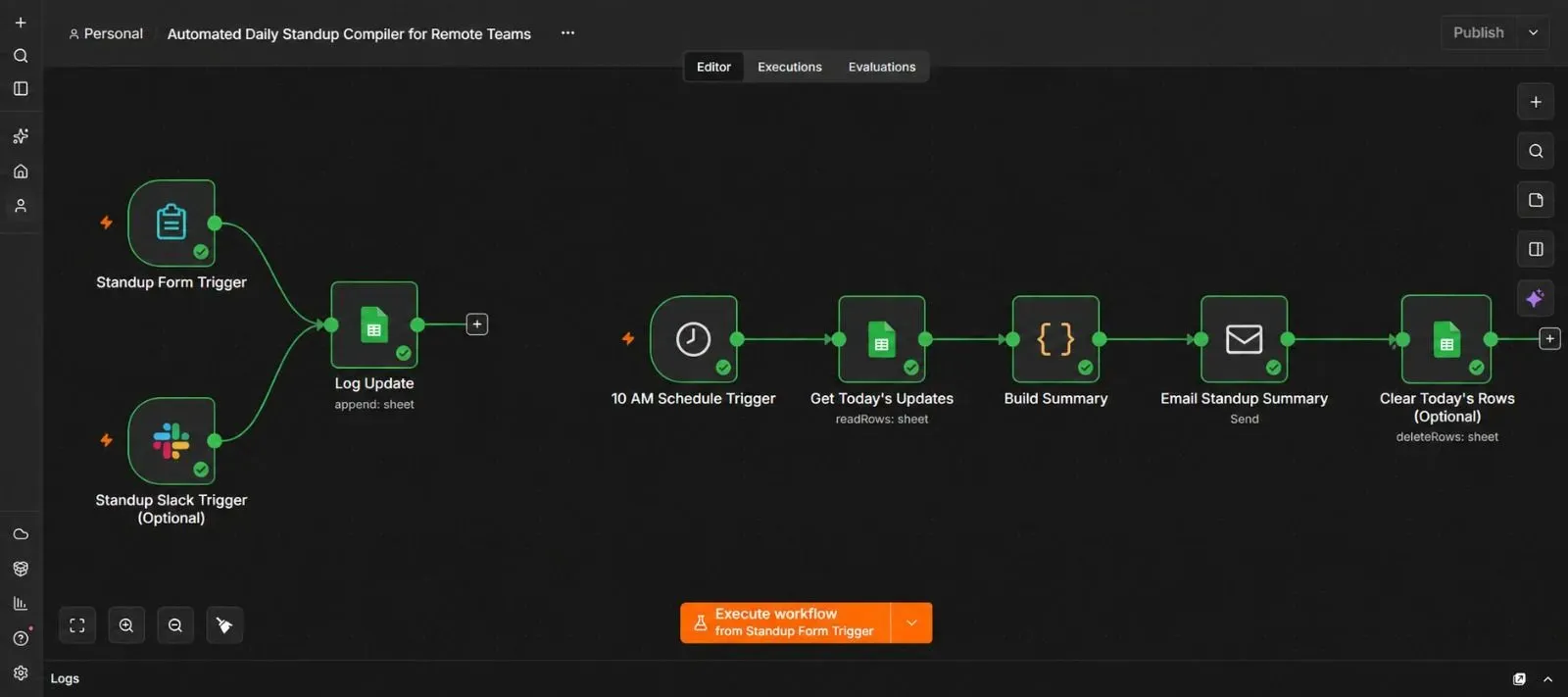
A team member fills out a short form (or types a Slack command) → n8n saves that update to a simple spreadsheet, tagged with their name and the date → this repeats throughout the day as more people submit → at 10 AM, a scheduled trigger wakes up, reads every update saved for that day, and compiles them into one readable list → that list gets emailed to the project manager automatically.
Why This Guide Stores Updates in a Sheet Instead of "n8n's Memory"
This is worth explaining before building anything, because it's the part that confuses almost everyone the first time they try to build something like this.
It feels natural to assume a workflow can just "remember" each update as it comes in throughout the day, the same way a variable stays remembered while a program is running. But that's not how n8n actually works. Every time a form gets submitted, n8n starts a brand new, separate execution of the workflow. That execution finishes, and everything it was holding in memory disappears with it. The 10 AM scheduled run is its own separate execution too, with no memory of any of the runs that happened earlier that morning.
In plain terms: nothing is remembered between one submission and the next unless it's written down somewhere that both executions can read from later.
That's why this workflow uses a Google Sheet as temporary storage. Think of it as a shared notepad. Every submission writes one line into it. The 10 AM run simply opens that same notepad, reads every line written that day, and then compiles them. A spreadsheet is used here instead of a full database because it's free, requires no setup beyond a Google account, and is easy to look at directly if something ever needs checking by hand.
What You'll Need Before You Start
| Requirement | What it's for | Where to get it |
|---|---|---|
| A Google account | Hosts the temporary storage sheet | Your existing Google account |
| An n8n instance (Cloud or self-hosted) | Runs the automation | n8n.io |
| An email account n8n can send from | Delivers the final summary | Gmail, Outlook, or any SMTP-supported email |
| The project manager's email address | Where the summary lands | Just have this ready |
| (Optional) A Slack workspace | Lets the team submit updates by typing a command instead of using a form | Your existing Slack account |
Step 1 — Create the Temporary Storage Sheet
- Open Google Sheets and create a new, blank spreadsheet.
- Name it something like "Daily Standup Log."
- In the first row, add four column headers: Date, Name, Update, and Timestamp.
- Leave every other row empty — this sheet will fill up automatically as the workflow runs.
Step 2 — Build the Submission Form in n8n
- Open a new, blank workflow in n8n.
- Click Add first step, search for "Form Trigger," and add it.
- Give the form a title, such as "Daily Standup Update."
- Add two fields: one labeled Name (short text) and one labeled Update (paragraph text, so people have room to write a full sentence or two).
- Save the workflow, then click into the Form Trigger node to copy its Form URL — this is the link you'll share with your team.
This is the link each team member visits to submit their update for the day. You can pin it in Slack, bookmark it, or add it to a shared team doc.
Step 3 — Save Each Submission to the Sheet
- Click + after the Form Trigger, search for "Google Sheets," and add it. Name it "Log Update."
- Connect your Google account when prompted.
- Set the operation to Append Row.
- Select the Daily Standup Log spreadsheet you created in Step 1.
- Map the fields:
- Date →
{{ $now.toISODate() }} - Name → the Name field from the form
- Update → the Update field from the form
- Timestamp →
{{ $now.toISO() }}
- Date →
- Test the step by submitting the form once yourself, then check the spreadsheet — a new row should appear immediately.
💡 This is the step that solves the memory problem explained earlier. Every submission, no matter when it happens during the day, gets permanently written to the sheet instead of relying on the workflow to "remember" it.
Step 4 — Optional: Let People Submit Updates From Slack Instead
Some teams prefer typing a quick message in Slack over opening a form link. If that's your team, this step replaces Steps 2 and 3 with a Slack-based version — otherwise, skip ahead to Step 5.
- Add a Slack Trigger node instead of a Form Trigger, and set it to listen for a specific slash command, such as
/standup. - Connect it to a Google Sheets node exactly as described in Step 3, mapping the Slack username and message text into the Name and Update columns instead of form fields.
- Both the form and the Slack command can run side by side in the same workflow if some people prefer one and some prefer the other — just connect both triggers into the same Google Sheets logging step.
Step 5 — Build the 10 AM Scheduled Trigger
- Add a second, separate starting point to your workflow. Click + on a blank area of the canvas, search for "Schedule Trigger," and add it.
- Set the trigger to run daily at 10:00 AM, using your team's timezone.
- This trigger runs completely independently of the form and Slack triggers above it — it wakes up once a day and starts its own chain of steps.
💡 A quick clarification worth understanding: a workflow can have more than one starting trigger. The form (or Slack) trigger and the schedule trigger both live in the same workflow, but they never run at the same time or interact directly — they only share data through the spreadsheet from Step 1.
Step 6 — Read Today's Submissions From the Sheet
- After the Schedule Trigger, add another Google Sheets node. Name it "Get Today's Updates."
- Set the operation to Get Row(s).
- Select the same Daily Standup Log spreadsheet.
- Add a filter so it only returns rows where the Date column matches today's date:
{{ $now.toISODate() }}. - Test the step — it should return only the rows that were logged today, ignoring anything from previous days.
Step 7 — Compile the Updates Into One Readable Summary
Raw spreadsheet rows aren't something a busy project manager wants to read one by one. This step turns them into a clean, scannable list.
- Add a Code node after the previous step, and name it "Build Summary."
- Set the language to JavaScript, and use logic like this:
const updates = items.map(item => {
  return `• ${item.json.Name}: ${item.json.Update}`;
}).join('\n\n');

const summaryText = updates.length > 0
  ? updates
  : "No updates were submitted today.";

return {
  json: {
    summary: summaryText,
    count: items.length
  }
};
💡 A couple of details worth understanding here:
itemsrefers to every row that came out of the previous step, so this runs once per workflow execution and loops through all of today's submissions at once, rather than needing a separate step for each person.- The fallback message matters. If nobody submitted an update that day, the email still goes out and clearly says so, instead of arriving empty and looking broken.
Step 8 — Send the Summary Email
- Click +, search for "Send Email," and add it. Name it "Email Standup Summary."
- Connect your email account when prompted.
- Set the To field to the project manager's email address.
- Set the Subject to something like
Daily Standup Summary — {{ $now.toFormat('MMMM d') }}. - Set the Text or HTML Body to
{{ $json.summary }}. - Test the step — check that the email arrives with each team member's update listed clearly, one per line.
Step 9 — Optional: Clear the Sheet for the Next Day
If you'd rather keep the sheet from growing indefinitely, add a step after the email is sent that deletes today's rows once they've been read and compiled. This is optional — many teams simply let the log grow and use it as a running history of past standups instead.
If you do want to clear it, add a Google Sheets node set to Delete Row(s), filtered to the same date used in Step 6, placed after the email step so nothing gets removed before it's actually been read.
Step 10 — Test the Full Chain and Activate
- Submit two or three test updates through the form (or Slack command).
- Manually trigger the Schedule Trigger node using n8n's Test Step button, rather than waiting until the next real 10 AM run.
- Confirm the email arrives with all of your test updates listed correctly.
- Once everything looks right, click the Active toggle in the top right corner of the canvas.
From here, the form or Slack command stays open all day, every submission gets logged automatically, and the summary email goes out on its own every morning at 10 AM.
The Downloadable Template
A ready-to-import version of this workflow is available, with clearly labeled placeholders for your Google Sheet ID, email address, and Slack command (if used).
How to install it:
- Open n8n and start a new, blank workflow.
- Click the three dots menu in the top right corner.
- Select Import from File.
- Choose the downloaded
.jsonfile. - Reconnect your Google Sheets and email credentials, and update the placeholder spreadsheet ID and email address with your own.
{
  "name": "Automated Daily Standup Compiler for Remote Teams",
  "nodes": [
    {
      "parameters": {
        "formTitle": "Daily Standup Update",
        "formFields": {
          "values": [
            { "fieldLabel": "Name", "fieldType": "text", "requiredField": true },
            { "fieldLabel": "Update", "fieldType": "textarea", "requiredField": true }
          ]
        },
        "options": {}
      },
      "id": "node-form-trigger",
      "name": "Standup Form Trigger",
      "type": "n8n-nodes-base.formTrigger",
      "typeVersion": 2.2,
      "position": [0, -120]
    },
    {
      "parameters": {
        "trigger": "command",
        "command": "/standup"
      },
      "id": "node-slack-trigger",
      "name": "Standup Slack Trigger (Optional)",
      "type": "n8n-nodes-base.slackTrigger",
      "typeVersion": 1,
      "position": [0, 120],
      "credentials": {
        "slackApi": { "id": "3", "name": "Team Slack" }
      }
    },
    {
      "parameters": {
        "operation": "append",
        "documentId": { "__rl": true, "value": "YOUR_GOOGLE_SHEET_ID", "mode": "id" },
        "sheetName": { "__rl": true, "value": "Sheet1", "mode": "list" },
        "columns": {
          "mappingMode": "defineBelow",
          "value": {
            "Date": "={{ $now.toISODate() }}",
            "Name": "={{ $json.Name || $json.user_name }}",
            "Update": "={{ $json.Update || $json.text }}",
            "Timestamp": "={{ $now.toISO() }}"
          }
        }
      },
      "id": "node-log-update",
      "name": "Log Update",
      "type": "n8n-nodes-base.googleSheets",
      "typeVersion": 4.5,
      "position": [220, 0],
      "credentials": {
        "googleSheetsOAuth2Api": { "id": "1", "name": "Standup Log Sheet" }
      }
    },
    {
      "parameters": {
        "rule": {
          "interval": [
            { "field": "cronExpression", "expression": "0 10 * * *" }
          ]
        }
      },
      "id": "node-schedule-trigger",
      "name": "10 AM Schedule Trigger",
      "type": "n8n-nodes-base.scheduleTrigger",
      "typeVersion": 1.2,
      "position": [0, 400]
    },
    {
      "parameters": {
        "operation": "readRows",
        "documentId": { "__rl": true, "value": "YOUR_GOOGLE_SHEET_ID", "mode": "id" },
        "sheetName": { "__rl": true, "value": "Sheet1", "mode": "list" },
        "filtersUI": {
          "values": [
            { "lookupColumn": "Date", "lookupValue": "={{ $now.toISODate() }}" }
          ]
        }
      },
      "id": "node-get-todays-updates",
      "name": "Get Today's Updates",
      "type": "n8n-nodes-base.googleSheets",
      "typeVersion": 4.5,
      "position": [220, 400],
      "credentials": {
        "googleSheetsOAuth2Api": { "id": "1", "name": "Standup Log Sheet" }
      }
    },
    {
      "parameters": {
        "language": "javaScript",
        "jsCode": "const updates = items.map(item => {\n  return `• ${item.json.Name}: ${item.json.Update}`;\n}).join('\\n\\n');\n\nconst summaryText = updates.length > 0\n  ? updates\n  : \"No updates were submitted today.\";\n\nreturn {\n  json: {\n    summary: summaryText,\n    count: items.length\n  }\n};"
      },
      "id": "node-build-summary",
      "name": "Build Summary",
      "type": "n8n-nodes-base.code",
      "typeVersion": 2,
      "position": [440, 400]
    },
    {
      "parameters": {
        "sendTo": "YOUR_PROJECT_MANAGER_EMAIL",
        "subject": "=Daily Standup Summary — {{ $now.toFormat('MMMM d') }}",
        "text": "={{ $json.summary }}",
        "options": {}
      },
      "id": "node-send-email",
      "name": "Email Standup Summary",
      "type": "n8n-nodes-base.emailSend",
      "typeVersion": 2.1,
      "position": [660, 400],
      "credentials": {
        "smtp": { "id": "4", "name": "Team Email Sender" }
      }
    },
    {
      "parameters": {
        "operation": "deleteRows",
        "documentId": { "__rl": true, "value": "YOUR_GOOGLE_SHEET_ID", "mode": "id" },
        "sheetName": { "__rl": true, "value": "Sheet1", "mode": "list" },
        "filtersUI": {
          "values": [
            { "lookupColumn": "Date", "lookupValue": "={{ $now.toISODate() }}" }
          ]
        }
      },
      "id": "node-clear-sheet",
      "name": "Clear Today's Rows (Optional)",
      "type": "n8n-nodes-base.googleSheets",
      "typeVersion": 4.5,
      "position": [880, 400],
      "credentials": {
        "googleSheetsOAuth2Api": { "id": "1", "name": "Standup Log Sheet" }
      }
    }
  ],
  "connections": {
    "Standup Form Trigger": {
      "main": [[{ "node": "Log Update", "type": "main", "index": 0 }]]
    },
    "Standup Slack Trigger (Optional)": {
      "main": [[{ "node": "Log Update", "type": "main", "index": 0 }]]
    },
    "10 AM Schedule Trigger": {
      "main": [[{ "node": "Get Today's Updates", "type": "main", "index": 0 }]]
    },
    "Get Today's Updates": {
      "main": [[{ "node": "Build Summary", "type": "main", "index": 0 }]]
    },
    "Build Summary": {
      "main": [[{ "node": "Email Standup Summary", "type": "main", "index": 0 }]]
    },
    "Email Standup Summary": {
      "main": [[{ "node": "Clear Today's Rows (Optional)", "type": "main", "index": 0 }]]
    }
  },
  "pinData": {},
  "meta": {
    "instanceId": "daily-standup-compiler-template"
  }
}
Common Mistakes to Avoid
- Assuming the workflow "remembers" updates on its own. Without the Google Sheet step, every submission is lost the moment its own execution finishes — there's nothing left for the 10 AM run to read.
- Forgetting to filter by today's date when reading the sheet. Without that filter, the summary email will include every update ever submitted, not just today's.
- Setting the schedule trigger to the wrong timezone. If your team is spread across time zones, double-check that 10 AM refers to the timezone you actually meant — n8n uses whatever timezone is set in the node, not automatically the project manager's local time.
- Not handling the "nobody submitted anything" case. Without a fallback message, an empty day can make the email look broken instead of simply reporting that nothing came in.
- Deleting rows before the email actually sends. If a cleanup step runs before the email step, the summary can go out empty even on a day people did submit updates. Always place cleanup after the email, never before it.
Frequently Asked Questions
No. A regular Google account and n8n's free tier (or a self-hosted instance) are enough to run this exact workflow.
Yes. Replace the Send Email node with a Slack node set to post a message, and use the same {{ $json.summary }} text as the message content.
It gets logged to the sheet like normal, but it won't appear in that day's summary since the compiling step already ran. It will simply be part of the sheet's history for that date.
Yes. Add a second Schedule Trigger set to a different time, connected to its own copy of the "read and compile" steps from Step 6 onward.
No. Each form or Slack submission runs as its own separate execution and writes its own row, so simultaneous submissions don't overwrite each other.
Leave a Comment
Your comment is completely private and secure. We never publish comments publicly on our website. Your message will be sent directly to our team.