
Here's the uncomfortable irony most people building their first uptime monitor run straight into: the one moment this automation actually needs to work — the instant your website goes down — is exactly the moment a poorly built version quietly stops working too. A node set to simply fail when a request fails means the entire workflow halts right when it should be springing into action. The monitor built specifically to catch an outage ends up silently going down along with the site it was watching.
This guide builds an uptime monitor that doesn't have that blind spot. Every 5 minutes, it checks your live site, and the moment something's wrong — a timeout, a connection failure, or a bad status code — it fires off both an SMS and a Slack message immediately.
This guide's specific technical focus is exactly the part that causes that silent-failure problem: configuring n8n's nodes to handle errors properly instead of just stopping, and setting up a recurring check you can actually rely on.
Every step below is written for someone who has never opened n8n before.
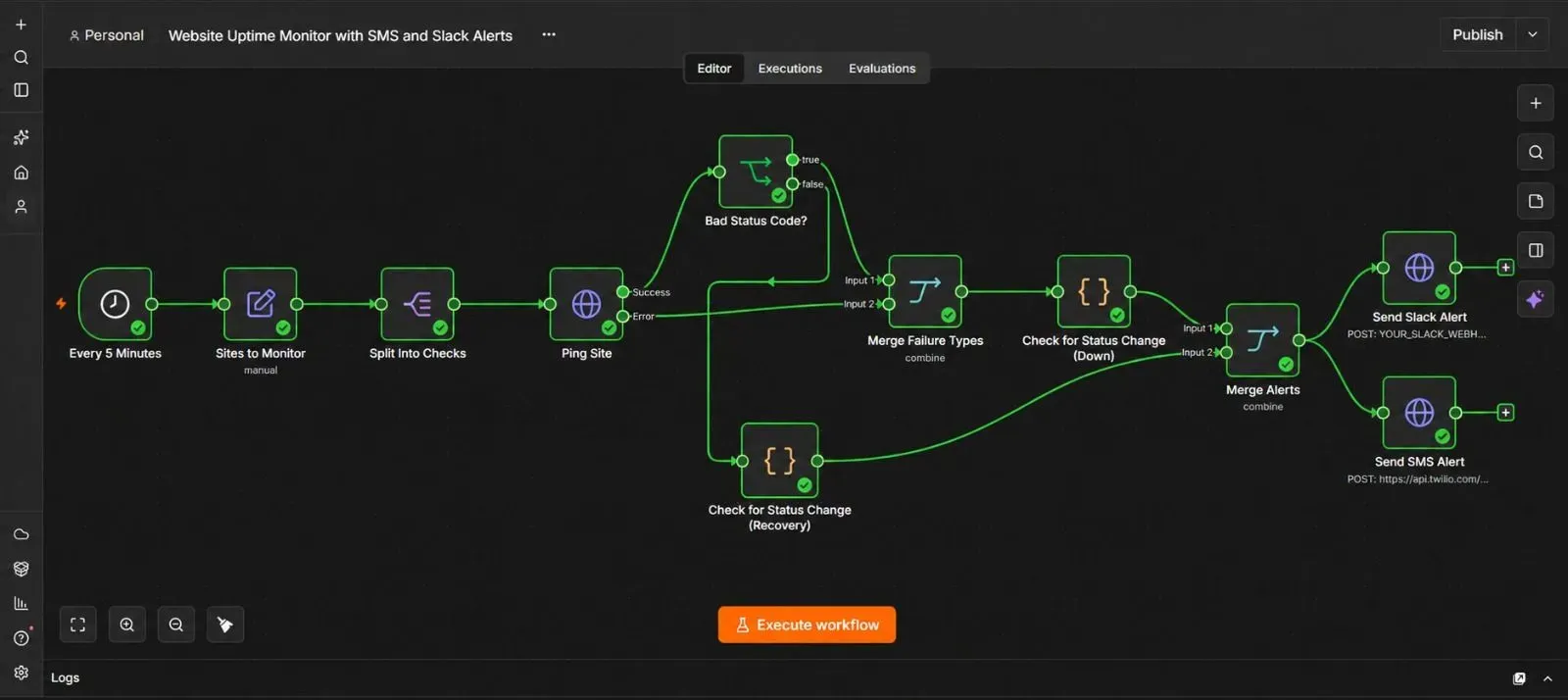
What This Automation Actually Does
Here's the short version before the steps begin:
Every 5 minutes → n8n pings each website on your list → if a site fails to respond at all, or responds with anything other than a healthy status code, that's treated as "down" → n8n checks whether this is a new problem or one it already alerted you about → if it's new, an SMS and a Slack message go out immediately → when the site comes back, a recovery message goes out too.
What You'll Need Before You Start
| Requirement | What it's for | Where to get it |
|---|---|---|
| A list of website URLs to monitor | What gets checked every 5 minutes | Your own site(s) |
| A Slack workspace and Incoming Webhook | Where alerts get posted | api.slack.com/apps |
| A Twilio account | Sends the SMS alert | twilio.com |
| An n8n instance (Cloud or self-hosted) | Runs the automation | n8n.io |
⚡ A quick note on check frequency: checking every 5 minutes means 288 checks per site, per day. If you're on an n8n Cloud plan with an execution limit, this can add up faster than it sounds, especially across several monitored sites — worth checking your plan's current execution allowance before setting this loose on more than a couple of URLs.
Step 1 — Create a Slack Incoming Webhook
- Go to api.slack.com/apps, click Create New App, choose From scratch, and select your workspace.
- In the left sidebar, click Incoming Webhooks, and switch the toggle On.
- Click Add New Webhook to Workspace, choose your alerts channel, and click Allow.
- Copy the generated Webhook URL.
Step 2 — Set Up Twilio for SMS Alerts
- Go to twilio.com, sign in, and copy your Account SID and Auth Token from the Console dashboard.
- Note your Twilio phone number, and the phone number you want alerts sent to.
Step 3 — List the Sites You Want to Monitor
- In n8n, open a new, blank workflow.
- Add a Set node as your first real step (right after the trigger you'll add in Step 4), name it "Sites to Monitor."
- Build an array field listing each site you want checked, for example:
[
  { "name": "Main Website", "url": "https://yourdomain.com" },
  { "name": "Store", "url": "https://shop.yourdomain.com" },
  { "name": "API", "url": "https://api.yourdomain.com/health" }
]
You'll turn this list into individual checks in Step 5.
Step 4 — Set Up a Reliable 5-Minute Trigger
This is the second major focus of this guide, so it's worth a proper explanation.
- Click Add first step, search for "Schedule Trigger," and add it.
- Set the Trigger Interval to Minutes, and set the value to 5.
💡 Two things make this trigger actually reliable, not just present:
- First, a Schedule Trigger only fires while its workflow is switched Active — building and testing it doesn't count. It's easy to test everything successfully and then forget the final step of turning monitoring on, covered later in Step 12.
- Second, think about what happens if a check occasionally takes longer than 5 minutes to complete — a slow site, a temporary network hiccup. n8n starts each scheduled run independently, so a slightly slow run doesn't block the next one from starting on time; it just means you might briefly have two checks in flight at once. For a lightweight ping like this, that's rarely a real problem, but it's worth understanding rather than assuming runs are perfectly sequential.
Step 5 — Turn Your Site List Into Individual Checks
- Click + after your Sites to Monitor node, search for "Split Out," and add it.
- Set Field to Split Out to the array field you built in Step 3.
- Test the step, and confirm you now have one separate item per site, each ready to be checked individually.
Step 6 — Understanding the Two Ways a Site Check Can Fail
Before building the actual ping step, it's worth understanding that "the site is down" can show up in two genuinely different ways, and both need to be handled.
The first way: the site responds, but with a bad status code — something like a 500 (server error) or 503 (service unavailable). The request technically succeeded; it just carried bad news.
The second way: there's no response at all — the server is unreachable, the connection times out, or DNS fails to resolve. This isn't a bad status code; it's a failed request. By default, n8n treats this as an error and stops the entire workflow right there unless it's explicitly told not to.
That second case is the trap mentioned at the start of this guide. If your monitor's ping step isn't configured to handle a totally failed request gracefully, the workflow doesn't just miss detecting that specific outage — it stops running altogether, silently, at the exact moment it was supposed to matter most.
Step 7 — Ping Each Website (With Proper Error Handling)
- Click +, search for "HTTP Request," and add it. Name it "Ping Site."
- Set the method to GET, and the URL to
{{ $json.url }}. - Click the small settings icon on the node, and find the On Error option. Set it to Continue (using error output).
💡 This is the exact fix for the problem described in Step 6. Instead of the node halting the whole workflow the moment a request fails outright, it now produces a second, dedicated output specifically for failures — letting the workflow keep running and actually respond to what it just found, instead of just stopping.
- Test the step against a working site first, and confirm it succeeds normally through the main output.
Step 8 — Catch Both Failure Types in One Place
- From the success output of the Ping Site node, add an IF node, name it "Bad Status Code?", checking whether
statusCodedoes not equal200. - Add a Merge node, set to Append.
- Connect the error output of the Ping Site node into one input of this Merge node, and the true output of the "Bad Status Code?" IF node into the other input.
Now both failure types — a site that didn't respond at all, and a site that responded with an error code — flow into the exact same downstream path, ready to be treated as "this site is down" regardless of which specific way it failed.
Step 9 — Avoid Repeating the Same Alert Every 5 Minutes
Without this step, a site that's down for an hour would trigger a new SMS and Slack alert every single check — 12 alerts for one outage. This step fixes that by remembering what you already know.
- Add a Code node after the Merge node, name it "Check for Status Change."
- Use this logic, which remembers each site's last known status between runs:
const staticData = $getWorkflowStaticData('node');
const siteName = $json.name || $json.request.url;
const previousStatus = staticData[siteName] || "up";
const currentStatus = "down";

staticData[siteName] = currentStatus;

if (previousStatus === currentStatus) {
  return []; // no change, don't alert again
}

return [{
  json: {
    site: siteName,
    status: currentStatus,
    message: `🔴 ${siteName} appears to be DOWN.`
  }
}];
Test this using a genuinely broken URL, and confirm it produces an alert on the first failed check, but stays quiet on repeated checks while the site remains down.
Step 10 — Also Alert When a Site Comes Back Up
- From the success output of the original Ping Site node (Step 7), also branch a path through a similar Code node, checking for the specific case where the previous status was
"down"and the current one is"up"— using the samestaticDatapattern, but flipped. - When that transition is detected, produce a recovery message like
🟢 ${siteName} is back up.
This means you're notified both when something breaks and when it's resolved, without needing to manually check back.
Step 11 — Send the Alert to Slack and SMS
- Click + after your alert-detection logic, search for "HTTP Request," and add it. Name it "Send Slack Alert."
- Set the method to POST, the URL to your Slack Webhook from Step 1, and the body to JSON with a
textfield set to yourmessage. - Click + again, search for "HTTP Request," and add another. Name it "Send SMS Alert."
- Set the method to POST, and the URL to:
https://api.twilio.com/2010-04-01/Accounts/YOUR_ACCOUNT_SID/Messages.json - Set Authentication to Basic Auth, using your Twilio Account SID and Auth Token from Step 2.
- Turn on Send Body, set it to form-urlencoded, and add:
To→ your alert phone numberFrom→ your Twilio phone numberBody→ yourmessagefield
- Test both steps, and confirm both the Slack message and the SMS arrive.
Step 12 — Test With a Genuinely Broken URL
- Temporarily add a test entry to your Sites to Monitor list pointing at a URL designed to return an error, such as
https://httpstat.us/500, which deliberately responds with a 500 error for testing purposes. - Run the workflow, and confirm the alert fires correctly.
- Remove or fix the test entry, run it again, and confirm the recovery message fires as expected.
- Once you've confirmed both directions work, remove the test entry before going live with your real site list.
Step 13 — Activate the Monitor
- Click the Active toggle in the top right corner of the n8n canvas.
- Confirm it switches on.
From here, your sites get checked every 5 minutes automatically, with alerts firing the moment something actually changes — not a moment before, and not repeatedly for the same ongoing issue.
The Downloadable Template
A ready-to-import version of this workflow is included below, with clearly labeled placeholders for your site list, Slack webhook, and Twilio credentials.
How to install it:
- Open n8n and start a new, blank workflow.
- Click the three dots menu in the top right corner.
- Select Import from File.
- Choose the downloaded
.jsonfile. - Update the site list, and connect your own Slack and Twilio details.
{
  "name": "Website Uptime Monitor with SMS and Slack Alerts",
  "nodes": [
    {
      "parameters": {
        "rule": {
          "interval": [{ "field": "minutes", "minutesInterval": 5 }]
        }
      },
      "id": "node-schedule-trigger",
      "name": "Every 5 Minutes",
      "type": "n8n-nodes-base.scheduleTrigger",
      "typeVersion": 1.2,
      "position": [0, 0]
    },
    {
      "parameters": {
        "assignments": {
          "assignments": [
            {
              "id": "s1",
              "name": "sites",
              "value": "={{ [ { name: \"Main Website\", url: \"https://yourdomain.com\" }, { name: \"Store\", url: \"https://shop.yourdomain.com\" }, { name: \"API\", url: \"https://api.yourdomain.com/health\" } ] }}",
              "type": "array"
            }
          ]
        },
        "options": {}
      },
      "id": "node-sites-list",
      "name": "Sites to Monitor",
      "type": "n8n-nodes-base.set",
      "typeVersion": 3.4,
      "position": [220, 0]
    },
    {
      "parameters": {
        "fieldToSplitOut": "sites",
        "options": {}
      },
      "id": "node-split-sites",
      "name": "Split Into Checks",
      "type": "n8n-nodes-base.splitOut",
      "typeVersion": 1,
      "position": [440, 0]
    },
    {
      "parameters": {
        "method": "GET",
        "url": "={{ $json.url }}",
        "options": {
          "timeout": 10000
        },
        "onError": "continueErrorOutput"
      },
      "id": "node-ping-site",
      "name": "Ping Site",
      "type": "n8n-nodes-base.httpRequest",
      "typeVersion": 4.2,
      "position": [660, 0],
      "onError": "continueErrorOutput"
    },
    {
      "parameters": {
        "conditions": {
          "conditions": [
            { "leftValue": "={{ $json.statusCode }}", "rightValue": 200, "operator": { "type": "number", "operation": "notEquals" } }
          ]
        }
      },
      "id": "node-if-bad-status",
      "name": "Bad Status Code?",
      "type": "n8n-nodes-base.if",
      "typeVersion": 2.2,
      "position": [880, -120]
    },
    {
      "parameters": { "mode": "combine", "combineBy": "combineAll", "options": {} },
      "id": "node-merge-failures",
      "name": "Merge Failure Types",
      "type": "n8n-nodes-base.merge",
      "typeVersion": 3,
      "position": [1100, 40]
    },
    {
      "parameters": {
        "language": "javaScript",
        "jsCode": "const staticData = $getWorkflowStaticData('node');\nconst siteName = $json.name || ($json.request && $json.request.url) || \"Unknown site\";\nconst previousStatus = staticData[siteName] || \"up\";\nconst currentStatus = \"down\";\n\nstaticData[siteName] = currentStatus;\n\nif (previousStatus === currentStatus) {\n  return [];\n}\n\nreturn [{\n  json: {\n    site: siteName,\n    status: currentStatus,\n    message: `🔴 ${siteName} appears to be DOWN.`\n  }\n}];"
      },
      "id": "node-check-down-change",
      "name": "Check for Status Change (Down)",
      "type": "n8n-nodes-base.code",
      "typeVersion": 2,
      "position": [1320, 40]
    },
    {
      "parameters": {
        "language": "javaScript",
        "jsCode": "const staticData = $getWorkflowStaticData('node');\nconst siteName = $json.name;\nconst previousStatus = staticData[siteName] || \"up\";\nconst currentStatus = \"up\";\n\nstaticData[siteName] = currentStatus;\n\nif (previousStatus !== \"down\") {\n  return [];\n}\n\nreturn [{\n  json: {\n    site: siteName,\n    status: currentStatus,\n    message: `🟢 ${siteName} is back up.`\n  }\n}];"
      },
      "id": "node-check-recovery",
      "name": "Check for Status Change (Recovery)",
      "type": "n8n-nodes-base.code",
      "typeVersion": 2,
      "position": [880, 200]
    },
    {
      "parameters": { "mode": "combine", "combineBy": "combineAll", "options": {} },
      "id": "node-merge-alerts",
      "name": "Merge Alerts",
      "type": "n8n-nodes-base.merge",
      "typeVersion": 3,
      "position": [1540, 100]
    },
    {
      "parameters": {
        "method": "POST",
        "url": "YOUR_SLACK_WEBHOOK_URL",
        "sendBody": true,
        "specifyBody": "json",
        "jsonBody": "={{ JSON.stringify({ text: $json.message }) }}"
      },
      "id": "node-send-slack",
      "name": "Send Slack Alert",
      "type": "n8n-nodes-base.httpRequest",
      "typeVersion": 4.2,
      "position": [1760, 0]
    },
    {
      "parameters": {
        "method": "POST",
        "url": "https://api.twilio.com/2010-04-01/Accounts/YOUR_TWILIO_ACCOUNT_SID/Messages.json",
        "authentication": "genericCredentialType",
        "genericAuthType": "httpBasicAuth",
        "sendBody": true,
        "contentType": "form-urlencoded",
        "bodyParameters": {
          "parameters": [
            { "name": "To", "value": "+15551234567" },
            { "name": "From", "value": "YOUR_TWILIO_PHONE_NUMBER" },
            { "name": "Body", "value": "={{ $json.message }}" }
          ]
        }
      },
      "id": "node-send-sms",
      "name": "Send SMS Alert",
      "type": "n8n-nodes-base.httpRequest",
      "typeVersion": 4.2,
      "position": [1760, 200],
      "credentials": {
        "httpBasicAuth": { "id": "1", "name": "Twilio Basic Auth" }
      }
    }
  ],
  "connections": {
    "Every 5 Minutes": {
      "main": [[{ "node": "Sites to Monitor", "type": "main", "index": 0 }]]
    },
    "Sites to Monitor": {
      "main": [[{ "node": "Split Into Checks", "type": "main", "index": 0 }]]
    },
    "Split Into Checks": {
      "main": [[{ "node": "Ping Site", "type": "main", "index": 0 }]]
    },
    "Ping Site": {
      "main": [
        [{ "node": "Bad Status Code?", "type": "main", "index": 0 }],
        [{ "node": "Merge Failure Types", "type": "main", "index": 1 }]
      ]
    },
    "Bad Status Code?": {
      "main": [
        [{ "node": "Merge Failure Types", "type": "main", "index": 0 }],
        [{ "node": "Check for Status Change (Recovery)", "type": "main", "index": 0 }]
      ]
    },
    "Merge Failure Types": {
      "main": [[{ "node": "Check for Status Change (Down)", "type": "main", "index": 0 }]]
    },
    "Check for Status Change (Down)": {
      "main": [[{ "node": "Merge Alerts", "type": "main", "index": 0 }]]
    },
    "Check for Status Change (Recovery)": {
      "main": [[{ "node": "Merge Alerts", "type": "main", "index": 1 }]]
    },
    "Merge Alerts": {
      "main": [
        [
          { "node": "Send Slack Alert", "type": "main", "index": 0 },
          { "node": "Send SMS Alert", "type": "main", "index": 0 }
        ]
      ]
    }
  },
  "pinData": {},
  "meta": {
    "instanceId": "website-uptime-monitor-template"
  }
}
Common Mistakes to Avoid
- Leaving the HTTP Request node's error handling on its default setting. As covered in Steps 6 and 7, this is the single mistake that causes the monitor to go silent at the exact moment it's needed most.
- Skipping the status-change check in Step 9. Without it, a long outage turns into dozens of repeated alerts instead of one clear notification.
- Forgetting to remove the deliberately broken test URL before going live. It's an easy thing to leave in after testing, and it'll keep triggering alerts about a "site" that was never real to begin with.
- Not checking your n8n plan's execution limits before monitoring many sites at 5-minute intervals. This adds up faster than it seems, especially across several URLs running around the clock.
- Assuming a slow response and a failed response are the same thing. They're handled differently in this workflow on purpose — one is a status-code problem, the other is a genuine request failure — and both matter.
Frequently Asked Questions
Yes. Just add more entries to the array in Step 3 — the Split Out step in Step 5 automatically creates one check per entry, however many you add.
Adjust the Schedule Trigger in Step 4 to whatever interval fits your needs — just weigh faster checks against the execution-volume note near the top of this guide.
Yes. Add a condition in Step 8 checking the response body for expected text, and treat a missing expected phrase as a failure the same way a bad status code is handled.
Slack is easy to miss if you're away from your desk, while SMS tends to get noticed almost immediately — using both means a genuine outage is very unlikely to go unseen for long.
It covers the core function well for a small number of sites, but dedicated monitoring services often add extras like historical uptime reports, global check locations, and status pages — worth considering if you need those specifically.
Leave a Comment
Your comment is completely private and secure. We never publish comments publicly on our website. Your message will be sent directly to our team.