
A writer sits down to start a new article and spends the first hour not writing at all — opening ten competitor pages in separate tabs, scrolling through each one to note down their headers, trying to spot a pattern in what topics keep showing up, and guessing at which related terms probably matter for the topic. By the time the actual writing starts, half the research time is already gone.
This guide builds an automation that does that research phase automatically. Type a target keyword into a simple form, and a few minutes later, a fully structured content brief appears in Google Docs — a recommended outline based on what's already ranking, a list of related terms worth including, and suggested questions to answer, all pulled from an actual analysis of the current top 10 results.
This guide's specific technical focus covers three things: fetching and reading other web pages' HTML content directly inside n8n, pulling out just the parts you need (headers) using CSS selectors, and writing a genuinely detailed AI prompt that produces a useful, structured SEO brief instead of a vague paragraph of suggestions.
Every step below is written for someone who has never opened n8n before.
A Quick Note on Where the Search Results Come From
This workflow doesn't scrape Google's search results page directly, and it's worth explaining why. Automatically scraping Google's own search results goes against Google's Terms of Service, and in practice it's also unreliable — Google actively blocks repeated automated requests, and the page's structure changes often enough to break a scraper within weeks of building it.
Instead, this guide uses a dedicated SERP API service — a tool built specifically to provide search result data through a proper API, legally and reliably. This guide uses Serper.dev as the example, since it has a simple setup and a usable free tier, but any similar SERP API service works the same way in this workflow.
What This Automation Actually Does
Here's the short version before the steps begin:
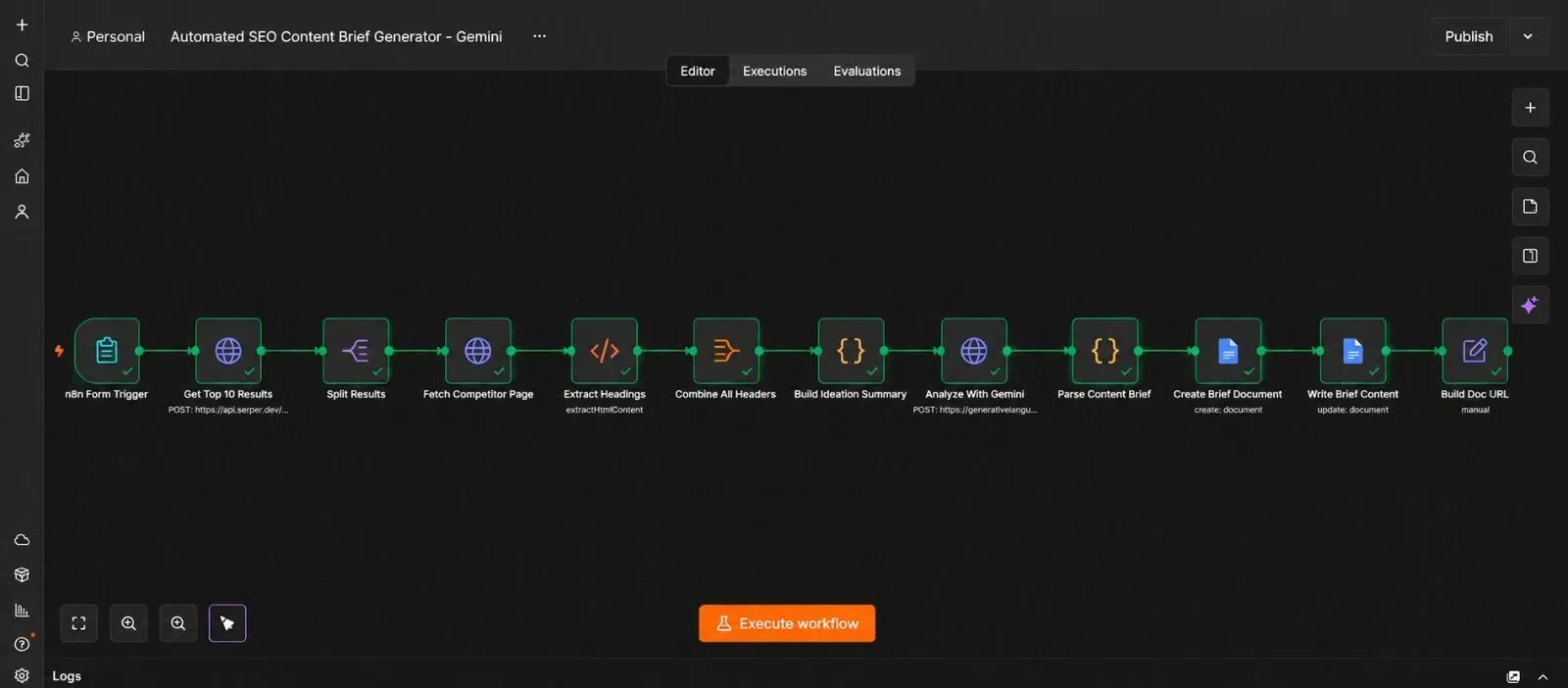
You type a keyword into a form → n8n asks a SERP API for the current top 10 Google results → n8n visits each of those 10 pages and pulls out their headers → all ten pages' headers get combined and sent to Gemini with detailed instructions → Gemini returns a structured brief — outline, related terms, and suggested questions → n8n writes that brief into a new Google Doc.
What You'll Need Before You Start
| Requirement | What it's for | Where to get it |
|---|---|---|
| A Serper.dev account (or similar SERP API) | Legally fetches Google's top 10 results for a keyword | serper.dev |
| A Gemini API key | Analyzes the competitor headers and builds the brief | aistudio.google.com |
| A Google account | Where the finished brief gets written | Your existing Google account |
| An n8n instance (Cloud or self-hosted) | Runs the automation | n8n.io |
Step 1 — Get a SERP API Key
- Go to serper.dev and create a free account.
- Copy your API key from the dashboard.
Step 2 — Get Your Gemini API Key
- Go to aistudio.google.com, sign in, and click Get API key.
- Click Create API key, and copy it somewhere safe.
Step 3 — Connect Google Docs to n8n
- In n8n, click Credentials, then New.
- Search for Google Docs OAuth2 API, and follow the sign-in steps to connect your Google account.
- Save it with a name like "Content Brief Docs."
Step 4 — Build the Input Form
- Open a new, blank workflow in n8n, click Add first step, search for "n8n Form Trigger," and add it.
- Set the form title to something like "Content Brief Generator."
- Add one field: Target Keyword, set as a required single-line text field.
- Save the workflow — n8n generates a public form URL you can visit directly to test it later.
This node does two things at once: it gives you a simple web page to type a keyword into, and it starts the entire workflow the moment that form gets submitted.
Step 5 — Fetch the Top 10 Google Results
- Click +, search for "HTTP Request," and add it. Name it "Get Top 10 Results."
- Set the method to POST, and the URL to
https://google.serper.dev/search. - Add a header named
X-API-KEY, with your Serper API key from Step 1 as the value. - Turn on Send Body, set it to JSON, and add a
qfield containing your form's keyword:{{ $json['Target Keyword'] }}. - Test the step using a real keyword. You should get back an
organicarray containing 10 results, each with a title, link, and snippet.
Step 6 — Split the Results Into Individual Pages
- Click +, search for "Split Out," and add it.
- Set Field to Split Out to
organic. - Test the step. You should now see 10 separate items, each representing one competitor's page.
Step 7 — Fetch Each Competitor Page's HTML
- Click +, search for "HTTP Request," and add it. Name it "Fetch Competitor Page."
- Set the method to GET, and the URL to
{{ $json.link }}. - Scroll to Options, and turn on Continue on Fail — some sites block automated requests, and this setting means one blocked page skips itself instead of stopping the whole brief from generating.
- Test the step. Because 10 items are flowing into this node, n8n automatically fetches all 10 pages one after another — there's no separate loop to build here; this is simply how n8n handles a node receiving multiple items.
Step 8 — Extract Just the Headers From Each Page
This is the first major focus of this guide, so it's worth slowing down here.
Each fetched page arrives as one long block of raw HTML — the entire page's code, far more than you actually need. What matters for a content brief isn't the whole page, just its headings (<h1>, <h2>, and <h3> tags), since those reveal how competitors structured their content.
- Click +, search for "HTML," and add it. Name it "Extract Headers."
- Set the Operation to Extract HTML Content.
- Add an extraction rule:
- CSS Selector →
h1, h2, h3 - Return Array → turned on
- Key →
headers
- CSS Selector →
- Test the step, and confirm you get back an array of heading text for each competitor page.
💡 A CSS selector is just a short pattern that tells the tool exactly which parts of a page to grab — h1, h2, h3 means "give me every heading tag of these three levels," ignoring everything else on the page, like navigation menus, ads, or footer text.
Step 9 — Combine All Ten Pages' Headers Into One Summary
- Add an Aggregate node, set it to combine all items into a single list, including the
headersfield and the originaltitleandlinkfields. - Add a Code node after it, name it "Build Headers Summary." Use logic like this to turn the combined data into one readable text block:
const pages = $json.data; // the aggregated array of competitor pages

const summary = pages.map((page, index) => {
  const headerList = (page.headers || []).join(' | ');
  return `Competitor ${index + 1} (${page.title}):\n${headerList}`;
}).join('\n\n');

return { json: { headers_summary: summary } };
Test the step, and confirm you get back one text block listing every competitor's headers, clearly separated.
Step 10 — Write a Genuinely Detailed Prompt for Gemini
This is the second major focus of this guide. A vague prompt like "write me a content outline" produces a generic, forgettable brief. A useful one gives the model a specific role, specific inputs, and a specific structure to follow.
- Click +, search for "HTTP Request," and add it. Name it "Analyze With Gemini."
- Set the method to POST, and the URL to
https://generativelanguage.googleapis.com/v1beta/models/gemini-2.0-flash:generateContent. - Add a query parameter named
key, with your Gemini API key. - Turn on Send Body, set it to JSON, and build a request using a detailed system instruction and a strict response schema:
{
  "contents": [
    {
      "parts": [
        {
          "text": "Target keyword: {{ $json['Target Keyword'] }}\n\nHere are the headers used by the current top 10 ranking pages for this keyword:\n\n{{ $json.headers_summary }}"
        }
      ]
    }
  ],
  "systemInstruction": {
    "parts": [
      {
        "text": "You are an experienced SEO content strategist. Analyze the competitor headers provided and identify recurring themes, subtopics, and structural patterns across them. Based on this analysis, produce a content brief for a new article that could realistically compete with these results. Recommend a clear, specific title, a meta description under 155 characters, a logical outline of H2 and H3 headings that covers the recurring themes without simply copying any single competitor, a list of related terms and entities worth naturally including, and a short list of questions the article should answer. Do not copy any competitor's exact wording — describe the topic and structure in your own terms."
      }
    ]
  },
  "generationConfig": {
    "responseMimeType": "application/json",
    "responseSchema": {
      "type": "OBJECT",
      "properties": {
        "recommended_title": { "type": "STRING" },
        "meta_description": { "type": "STRING" },
        "outline": {
          "type": "ARRAY",
          "items": {
            "type": "OBJECT",
            "properties": {
              "heading": { "type": "STRING" },
              "subheadings": { "type": "ARRAY", "items": { "type": "STRING" } }
            }
          }
        },
        "related_terms": { "type": "ARRAY", "items": { "type": "STRING" } },
        "suggested_questions": { "type": "ARRAY", "items": { "type": "STRING" } }
      },
      "required": ["recommended_title", "meta_description", "outline", "related_terms", "suggested_questions"]
    }
  }
}
💡 Notice the prompt explicitly tells Gemini not to copy any competitor's exact wording, and to describe patterns rather than lift specific phrasing — this keeps the output as genuine analysis rather than something that edges toward reproducing someone else's content.
Test the step. You should get back a clean, structured brief covering a title, meta description, outline, related terms, and suggested questions.
Step 11 — Parse the Brief Safely
- Add a Code node, name it "Parse Content Brief."
- Use this logic, consistent with the safe-parsing pattern used for structured AI responses elsewhere:
const rawText = $json.candidates[0].content.parts[0].text;

try {
  const parsed = JSON.parse(rawText);
  return { json: parsed };
} catch (error) {
  return {
    json: {
      recommended_title: "Could not generate brief — check the raw Gemini response.",
      meta_description: "",
      outline: [],
      related_terms: [],
      suggested_questions: []
    }
  };
}
Test the step, and confirm you get back clean, usable fields.
Step 12 — Create the Google Doc
- Click +, search for "Google Docs," and add it. Name it "Create Brief Document."
- Connect your credential from Step 3.
- Set the Operation to Create, and set the document title to your
recommended_titlefield. - Add a second Google Docs node, set to Update, and use the Insert Text action to write out the rest of the brief — the meta description, the outline (looping through each heading and its subheadings), the related terms list, and the suggested questions — formatted with line breaks so it reads clearly.
- Test both steps, then open the new Google Doc and confirm the brief reads clearly from top to bottom.
Step 13 — Show the Finished Link on the Form
- Go back to your n8n Form Trigger node from Step 4, and open its Respond With settings.
- Set it to show a custom completion message, referencing the new Google Doc's URL from Step 12 — something like "Your content brief is ready: {{ link }}."
- Test the whole flow by actually submitting the form and confirming the completion page shows a working link once the workflow finishes.
Because the form waits for the entire workflow to complete before showing its response page, the person submitting the keyword sees a "processing" state and then the finished link — no need to check anywhere else.
Step 14 — Test With a Real Keyword
- Visit your form's public URL, and submit a real target keyword.
- Watch the n8n execution log as it moves through fetching results, extracting headers, analyzing with Gemini, and writing the Doc.
- Confirm the brief reads sensibly and reflects real patterns from the actual top 10 pages, not generic filler.
Step 15 — Activate the Workflow
- Click the Active toggle in the top right corner of the n8n canvas.
- Confirm it switches on — this makes the form's public URL live and usable outside of test runs.
From here, anyone with the form link can generate a full content brief just by typing in a keyword.
The Downloadable Template
A ready-to-import version of this workflow is included below, with clearly labeled placeholders for your own API keys.
How to install it:
- Open n8n and start a new, blank workflow.
- Click the three dots menu in the top right corner.
- Select Import from File.
- Choose the downloaded
.jsonfile. - Connect your own Serper, Gemini, and Google Docs credentials where the placeholders appear.
{
  "name": "Automated SEO Content Brief Generator - Gemini",
  "nodes": [
    {
      "parameters": {
        "formTitle": "Content Brief Generator",
        "formFields": {
          "values": [
            { "fieldLabel": "Target Keyword", "requiredField": true }
          ]
        },
        "options": {
          "respondWith": "text",
          "responseText": "Your content brief is ready: {{ $json.doc_url }}"
        }
      },
      "id": "node-form-trigger",
      "name": "n8n Form Trigger",
      "type": "n8n-nodes-base.formTrigger",
      "typeVersion": 2,
      "position": [0, 0]
    },
    {
      "parameters": {
        "method": "POST",
        "url": "https://google.serper.dev/search",
        "sendHeaders": true,
        "headerParameters": {
          "parameters": [
            { "name": "X-API-KEY", "value": "YOUR_SERPER_API_KEY" }
          ]
        },
        "sendBody": true,
        "specifyBody": "json",
        "jsonBody": "={{ JSON.stringify({ q: $json['Target Keyword'] }) }}"
      },
      "id": "node-get-top-10",
      "name": "Get Top 10 Results",
      "type": "n8n-nodes-base.httpRequest",
      "typeVersion": 4.2,
      "position": [220, 0]
    },
    {
      "parameters": {
        "fieldToSplitOut": "organic",
        "options": { "includeOtherFields": false }
      },
      "id": "node-split-results",
      "name": "Split Results",
      "type": "n8n-nodes-base.splitOut",
      "typeVersion": 1,
      "position": [440, 0]
    },
    {
      "parameters": {
        "method": "GET",
        "url": "={{ $json.link }}",
        "options": {
          "continueOnFail": true
        }
      },
      "id": "node-fetch-page",
      "name": "Fetch Competitor Page",
      "type": "n8n-nodes-base.httpRequest",
      "typeVersion": 4.2,
      "position": [660, 0],
      "continueOnFail": true
    },
    {
      "parameters": {
        "operation": "extractHtmlContent",
        "extractionValues": {
          "values": [
            {
              "key": "headers",
              "cssSelector": "h1, h2, h3",
              "returnArray": true
            }
          ]
        },
        "options": {}
      },
      "id": "node-extract-headers",
      "name": "Extract Headers",
      "type": "n8n-nodes-base.html",
      "typeVersion": 1.2,
      "position": [880, 0]
    },
    {
      "parameters": {
        "aggregate": "aggregateAllItemData",
        "options": {}
      },
      "id": "node-aggregate-headers",
      "name": "Combine All Headers",
      "type": "n8n-nodes-base.aggregate",
      "typeVersion": 1,
      "position": [1100, 0]
    },
    {
      "parameters": {
        "language": "javaScript",
        "jsCode": "const pages = $json.data;\n\nconst summary = pages.map((page, index) => {\n  const headerList = (page.headers || []).join(' | ');\n  return `Competitor ${index + 1} (${page.title}):\\n${headerList}`;\n}).join('\\n\\n');\n\nreturn { json: { headers_summary: summary, target_keyword: $('n8n Form Trigger').first().json['Target Keyword'] } };"
      },
      "id": "node-build-summary",
      "name": "Build Headers Summary",
      "type": "n8n-nodes-base.code",
      "typeVersion": 2,
      "position": [1320, 0]
    },
    {
      "parameters": {
        "method": "POST",
        "url": "https://generativelanguage.googleapis.com/v1beta/models/gemini-2.0-flash:generateContent",
        "sendQuery": true,
        "queryParameters": {
          "parameters": [
            { "name": "key", "value": "YOUR_GEMINI_API_KEY" }
          ]
        },
        "sendBody": true,
        "specifyBody": "json",
        "jsonBody": "={{ JSON.stringify({\n  contents: [\n    {\n      parts: [\n        { text: \"Target keyword: \" + $json.target_keyword + \"\\n\\nHere are the headers used by the current top 10 ranking pages for this keyword:\\n\\n\" + $json.headers_summary }\n      ]\n    }\n  ],\n  systemInstruction: {\n    parts: [\n      { text: \"You are an experienced SEO content strategist. Analyze the competitor headers provided and identify recurring themes, subtopics, and structural patterns across them. Based on this analysis, produce a content brief for a new article that could realistically compete with these results. Recommend a clear, specific title, a meta description under 155 characters, a logical outline of H2 and H3 headings that covers the recurring themes without simply copying any single competitor, a list of related terms and entities worth naturally including, and a short list of questions the article should answer. Do not copy any competitor's exact wording - describe the topic and structure in your own terms.\" }\n    ]\n  },\n  generationConfig: {\n    responseMimeType: \"application/json\",\n    responseSchema: {\n      type: \"OBJECT\",\n      properties: {\n        recommended_title: { type: \"STRING\" },\n        meta_description: { type: \"STRING\" },\n        outline: {\n          type: \"ARRAY\",\n          items: {\n            type: \"OBJECT\",\n            properties: {\n              heading: { type: \"STRING\" },\n              subheadings: { type: \"ARRAY\", items: { type: \"STRING\" } }\n            }\n          }\n        },\n        related_terms: { type: \"ARRAY\", items: { type: \"STRING\" } },\n        suggested_questions: { type: \"ARRAY\", items: { type: \"STRING\" } }\n      },\n      required: [\"recommended_title\", \"meta_description\", \"outline\", \"related_terms\", \"suggested_questions\"]\n    }\n  }\n}) }}"
      },
      "id": "node-analyze-gemini",
      "name": "Analyze With Gemini",
      "type": "n8n-nodes-base.httpRequest",
      "typeVersion": 4.2,
      "position": [1540, 0]
    },
    {
      "parameters": {
        "language": "javaScript",
        "jsCode": "const rawText = $json.candidates[0].content.parts[0].text;\n\ntry {\n  const parsed = JSON.parse(rawText);\n  return { json: parsed };\n} catch (error) {\n  return {\n    json: {\n      recommended_title: \"Could not generate brief - check the raw Gemini response.\",\n      meta_description: \"\",\n      outline: [],\n      related_terms: [],\n      suggested_questions: []\n    }\n  };\n}"
      },
      "id": "node-parse-brief",
      "name": "Parse Content Brief",
      "type": "n8n-nodes-base.code",
      "typeVersion": 2,
      "position": [1760, 0]
    },
    {
      "parameters": {
        "operation": "create",
        "title": "={{ $json.recommended_title }}"
      },
      "id": "node-create-doc",
      "name": "Create Brief Document",
      "type": "n8n-nodes-base.googleDocs",
      "typeVersion": 2,
      "position": [1980, 0],
      "credentials": {
        "googleDocsOAuth2Api": { "id": "1", "name": "Content Brief Docs" }
      }
    },
    {
      "parameters": {
        "operation": "update",
        "documentURL": "={{ $json.id }}",
        "actionsUi": {
          "actionFields": [
            {
              "action": "insertText",
              "text": "={{ 'Meta Description: ' + $('Parse Content Brief').first().json.meta_description + '\\n\\nOutline:\\n' + $('Parse Content Brief').first().json.outline.map(o => '- ' + o.heading + '\\n  ' + o.subheadings.join('\\n  ')).join('\\n') + '\\n\\nRelated Terms:\\n' + $('Parse Content Brief').first().json.related_terms.join(', ') + '\\n\\nSuggested Questions:\\n' + $('Parse Content Brief').first().json.suggested_questions.join('\\n') }}"
            }
          ]
        }
      },
      "id": "node-update-doc",
      "name": "Write Brief Content",
      "type": "n8n-nodes-base.googleDocs",
      "typeVersion": 2,
      "position": [2200, 0],
      "credentials": {
        "googleDocsOAuth2Api": { "id": "1", "name": "Content Brief Docs" }
      }
    },
    {
      "parameters": {
        "assignments": {
          "assignments": [
            { "id": "u1", "name": "doc_url", "value": "={{ 'https://docs.google.com/document/d/' + $('Create Brief Document').first().json.id }}", "type": "string" }
          ]
        },
        "options": {}
      },
      "id": "node-build-doc-url",
      "name": "Build Doc URL",
      "type": "n8n-nodes-base.set",
      "typeVersion": 3.4,
      "position": [2420, 0]
    }
  ],
  "connections": {
    "n8n Form Trigger": {
      "main": [[{ "node": "Get Top 10 Results", "type": "main", "index": 0 }]]
    },
    "Get Top 10 Results": {
      "main": [[{ "node": "Split Results", "type": "main", "index": 0 }]]
    },
    "Split Results": {
      "main": [[{ "node": "Fetch Competitor Page", "type": "main", "index": 0 }]]
    },
    "Fetch Competitor Page": {
      "main": [[{ "node": "Extract Headers", "type": "main", "index": 0 }]]
    },
    "Extract Headers": {
      "main": [[{ "node": "Combine All Headers", "type": "main", "index": 0 }]]
    },
    "Combine All Headers": {
      "main": [[{ "node": "Build Headers Summary", "type": "main", "index": 0 }]]
    },
    "Build Headers Summary": {
      "main": [[{ "node": "Analyze With Gemini", "type": "main", "index": 0 }]]
    },
    "Analyze With Gemini": {
      "main": [[{ "node": "Parse Content Brief", "type": "main", "index": 0 }]]
    },
    "Parse Content Brief": {
      "main": [[{ "node": "Create Brief Document", "type": "main", "index": 0 }]]
    },
    "Create Brief Document": {
      "main": [[{ "node": "Write Brief Content", "type": "main", "index": 0 }]]
    },
    "Write Brief Content": {
      "main": [[{ "node": "Build Doc URL", "type": "main", "index": 0 }]]
    }
  },
  "pinData": {},
  "meta": {
    "instanceId": "seo-content-brief-generator-template"
  }
}
Common Mistakes to Avoid
- Trying to scrape Google's results page directly instead of using a SERP API. As covered at the top of this guide, this risks both reliability problems and Terms of Service issues — a proper SERP API avoids both.
- Skipping "Continue on Fail" on the page-fetching step. Some competitor sites block automated requests outright, and without this setting, one blocked page stops the entire brief from generating.
- Using a vague prompt for Gemini. The difference between a genuinely useful brief and a generic one almost entirely comes down to how specific the instructions in Step 10 are.
- Letting Gemini copy competitor wording directly. The explicit instruction against this in the prompt matters — without it, a brief can drift toward paraphrasing existing content too closely instead of producing original analysis.
- Forgetting that some pages simply won't have clean H1/H2/H3 structure. A few competitor pages may return very few or oddly formatted headers — this is normal, and the aggregated summary in Step 9 still works fine with uneven input.
Frequently Asked Questions
No. This automates the competitive research phase and gives you a strong, informed starting point — actual rankings still depend on content quality, site authority, and many factors outside any single brief.
Yes. Any SERP API that returns organic results as structured data works the same way — just adjust the request format in Step 5 to match that provider's documentation.
Reading a public page's HTML to extract structural information like headers is different from copying and republishing its content. Still, check the target sites' terms of service and robots.txt files if you plan to run this at high volume, and keep the automation's use limited to internal research rather than republishing scraped material.
The workflow simply gets a short or empty headers array for that page and moves on — it doesn't stop the rest of the brief from being generated using the other nine pages.
Yes. Add more fields to the responseSchema in Step 10, and update the Google Docs formatting step in Step 12 to include them.
Leave a Comment
Your comment is completely private and secure. We never publish comments publicly on our website. Your message will be sent directly to our team.