
Friday morning arrives, and the plan was always to post a quick roundup of the week's best industry stories. Instead, there's a scramble through five browser tabs trying to remember which article was actually worth sharing, followed by a rushed thread with awkward phrasing and a broken link, or — more often — no thread at all, because the moment passed.
This guide builds an automation that turns that weekly scramble into something that just happens on its own. Every Friday morning, n8n checks a handful of industry RSS feeds, picks out the top five most recent stories, and posts them as a properly threaded tweet — no last-minute tab-hunting required.
This guide's specific technical focus covers three things worth understanding properly: scheduling a workflow to run on a specific day and time, working with lists of data (sorting and trimming them down to the best few), and posting a real Twitter/X thread, which requires handling one tweet at a time in a specific order rather than all at once.
Every step below is written for someone who has never opened n8n before.
What This Automation Actually Does
Here's the short version before the steps begin:
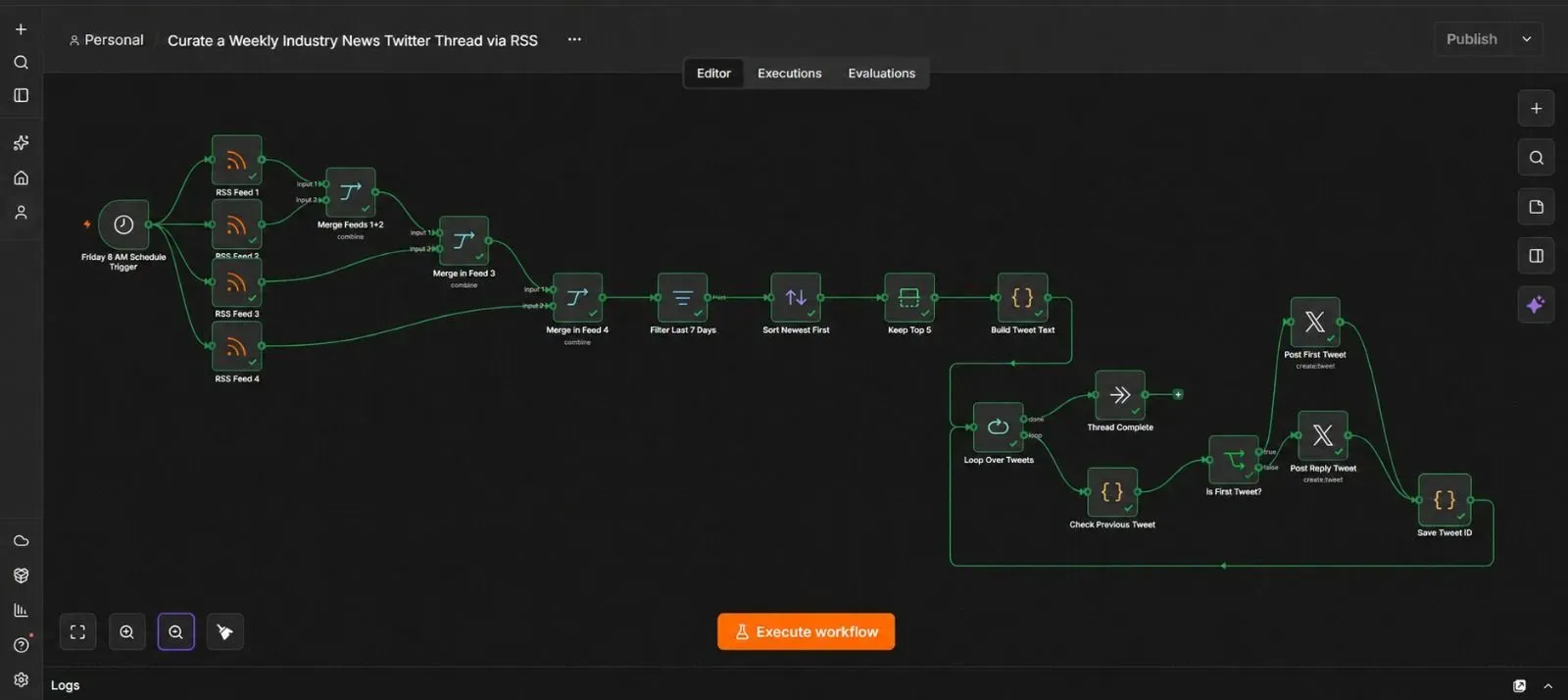
Every Friday at 8 AM → n8n checks 3–4 RSS feeds for recent articles → all the articles get combined into one list → anything older than a week or off-topic gets filtered out → the list gets sorted newest-first and trimmed to the top 5 → each of those 5 articles gets posted as its own tweet, threaded together in order.
What You'll Need Before You Start
| Requirement | What it's for | Where to get it |
|---|---|---|
| 3–4 RSS feed URLs from industry sites you follow | The source of your weekly stories | Most blogs and news sites list their RSS feed URL in the footer or under "Subscribe" |
| A Twitter/X Developer account with posting access | Lets n8n publish the thread | developer.twitter.com |
| An n8n instance (Cloud or self-hosted) | Runs the automation | n8n.io |
⚡ A note on X API access: Twitter/X's developer access tiers and pricing have changed more than once, and posting access isn't always included on a free tier. Check the current requirements and costs on developer.twitter.com before building this out fully, since that detail can shift independently of anything covered in this guide.
Step 1 — Set Up Twitter/X API Access
- Go to developer.twitter.com, sign in, and create a new Project and App if you don't already have one.
- Under your app's settings, set User authentication settings to allow Read and Write permissions — posting requires this; read-only access won't work.
- Generate your API Key, API Secret, Access Token, and Access Token Secret.
- In n8n, go to Credentials → New, search for Twitter OAuth1 API, and paste in all four values.
💡 Using n8n's built-in Twitter node instead of a manual HTTP request matters here — Twitter's posting API requires a specific security signature on every request (OAuth 1.0a), and n8n's native node handles that automatically instead of you needing to build it by hand.
Step 2 — Gather Your RSS Feed URLs
- Pick 3–4 industry sites you'd want to pull stories from.
- For each one, look for an RSS or feed link — often in the site footer, or by adding
/feedor/rssto the site's homepage URL. - Paste each URL into a browser tab to confirm it loads readable feed data rather than an error.
Step 3 — Add a Friday Morning Schedule Trigger
- Open a new, blank workflow in n8n, click Add first step, search for "Schedule Trigger," and add it.
- Set the Trigger Interval to Weeks.
- Set the day to Friday, and the time to 8:00 AM (or whatever time suits your own schedule).
💡 This is the first part of the guide's scheduling focus: n8n's Schedule Trigger isn't limited to "every day" — it can be set to specific days of the week, specific dates, or recurring intervals, which is exactly what a weekly Friday roundup needs.
Step 4 — Add One RSS Feed Read Node Per Source
- Click +, search for "RSS Feed Read," and add it. Paste in your first feed URL.
- Repeat this for each additional feed — one separate RSS Feed Read node per source, each connected directly to the Schedule Trigger.
- Test each one individually, and confirm each returns a list of recent articles with a title, link, and publish date.
Step 5 — Combine All the Feeds Into One List
- Click +, search for "Merge," and add it. Set the mode to Append.
- Connect your first two RSS Feed Read nodes into this Merge node's two inputs.
- Since a Merge node only combines two inputs at a time, add a second Merge node (also set to Append) to combine that result with your third feed, and a third Merge node if you have a fourth feed.
- Test the final Merge node, and confirm you get back one combined list containing articles from every feed.
Step 6 — Filter Out Old or Irrelevant Articles
- Click +, search for "Filter," and add it.
- Add a condition checking that the article's publish date is after 7 days ago — for example, comparing
pubDateagainst{{ $now.minus({ days: 7 }) }}. - If any of your feeds tend to include off-topic content, add a second condition excluding articles whose title contains a specific unwanted term.
- Test the step, and confirm only genuinely recent, relevant articles remain.
Step 7 — Sort the List and Keep Only the Top 5
This is the second major focus of this guide: working with a list of items as an actual list, not just individual pieces of data passing through one at a time.
💡 Why sorting matters here: once you've merged four separate feeds together, the combined list is no longer in any particular order — it's just whatever order each feed happened to return, stitched together. Without sorting, "the top 5" would really just mean "the first 5 that happened to merge in first," not the most recent ones.
- Click +, search for "Sort," and add it.
- Set it to sort by the
pubDatefield, in descending order (newest first). - Click + again, search for "Limit," and add it.
- Set Max Items to 5.
- Test both steps together, and confirm you're left with exactly five items, in order from most to least recent.
💡 These two nodes are the actual "array manipulation" this guide's focus refers to — taking a raw, unordered list and turning it into exactly the trimmed, ordered set you actually want to publish.
Step 8 — Build the Text for Each Tweet
- Add a Code node, name it "Build Tweet Text."
- Use logic like this, which numbers each tweet and keeps the text within Twitter's character limit:
const items = $input.all();

return items.map((item, index) => {
  const number = `${index + 1}/${items.length}`;
  let title = item.json.title;

  // Twitter counts links as a fixed length regardless of actual URL length,
  // so leave generous room for the title text itself.
  const maxTitleLength = 240;
  if (title.length > maxTitleLength) {
    title = title.substring(0, maxTitleLength) + "...";
  }

  return {
    json: {
      tweet_text: `${number} ${title}\n${item.json.link}`
    }
  };
});
Test the step, and confirm you get back five short, numbered tweet drafts, each under the character limit.
Step 9 — Understanding Why Posting a Thread Requires a Loop
Before building the final steps, it's worth understanding why this can't just be one node posting all five tweets at once.
A Twitter thread is really just a chain of individual tweets, where each one after the first is posted as a reply to the tweet before it. That means tweet #2 can't be posted until tweet #1 exists and you know its ID, tweet #3 needs tweet #2's ID, and so on. There's no way to submit all five at once and have Twitter automatically link them together — they have to be posted one at a time, in order, each one referencing the one before it.
This is exactly what n8n's Split In Batches node (sometimes labeled Loop Over Items) is built for: processing a list one item at a time, in sequence, rather than all at once.
Step 10 — Loop Through the Five Tweets
- Click +, search for "Split In Batches," and add it. Set Batch Size to 1, so it processes exactly one tweet draft per pass.
- This node has two outputs: done (once every item has been processed) and loop (the current item, to be processed now). Connect the loop output forward into your posting steps below, and you'll connect the end of those steps back into this node's input shortly — that connection is what makes it repeat.
Step 11 — Post Each Tweet, Threading It to the One Before
- Add a Code node after the loop output, name it "Check Previous Tweet." Use this logic to remember the previous tweet's ID between loop passes:
const staticData = $getWorkflowStaticData('node');

return {
  json: {
    ...$json,
    previous_tweet_id: staticData.previousTweetId || null
  }
};
💡 This uses a feature called workflow static data — a small bit of memory n8n can hold onto across each pass of the loop within the same run, which is exactly what's needed to remember "what was the last tweet's ID" from one iteration to the next.
- Add an IF node, name it "Is First Tweet?", checking whether
previous_tweet_idis empty. - On the true branch (first tweet), add a Twitter node set to Post Tweet, using
tweet_textas the content, with no reply reference. - On the false branch (every tweet after the first), add a second Twitter node set to Post Tweet, using
tweet_textas the content, and setting In Reply To toprevious_tweet_id— this is what actually threads it to the tweet before it. - After both branches, add a Code node, name it "Save Tweet ID," which stores the tweet that was just posted so the next loop pass can find it:
const staticData = $getWorkflowStaticData('node');
staticData.previousTweetId = $json.id;
return { json: $json };
Connect this node's output back into the Split In Batches node from Step 10, completing the loop.
Step 12 — Test Carefully Before Going Live
- Before testing with your real account, consider testing with a private or throwaway test account first, since there's no built-in "draft mode" for the Twitter API — anything posted during testing is genuinely live.
- Once you're confident it's working, run the workflow manually with your real feeds and account, and confirm all five tweets post in order, each correctly replying to the one before it.
Step 13 — Activate the Workflow
- Click the Active toggle in the top right corner of the n8n canvas.
- Confirm it switches on.
From here, a fresh thread of the week's top stories posts itself every Friday morning, in order, without anyone needing to hunt down links at the last minute.
The Downloadable Template
A ready-to-import version of this workflow is included below, with clearly labeled placeholders for your own feed URLs and Twitter credentials.
How to install it:
- Open n8n and start a new, blank workflow.
- Click the three dots menu in the top right corner.
- Select Import from File.
- Choose the downloaded
.jsonfile. - Update the RSS feed URLs, and connect your own Twitter OAuth1 credential.
{
  "name": "Curate a Weekly Industry News Twitter Thread via RSS",
  "nodes": [
    {
      "parameters": {
        "rule": {
          "interval": [
            { "field": "weeks", "triggerAtDay": [5], "triggerAtHour": 8, "triggerAtMinute": 0 }
          ]
        }
      },
      "id": "node-schedule-trigger",
      "name": "Friday 8 AM Schedule Trigger",
      "type": "n8n-nodes-base.scheduleTrigger",
      "typeVersion": 1.2,
      "position": [0, -200]
    },
    {
      "parameters": { "url": "YOUR_FEED_URL_1" },
      "id": "node-feed-1",
      "name": "RSS Feed 1",
      "type": "n8n-nodes-base.rssFeedRead",
      "typeVersion": 1.1,
      "position": [220, -320]
    },
    {
      "parameters": { "url": "YOUR_FEED_URL_2" },
      "id": "node-feed-2",
      "name": "RSS Feed 2",
      "type": "n8n-nodes-base.rssFeedRead",
      "typeVersion": 1.1,
      "position": [220, -200]
    },
    {
      "parameters": { "url": "YOUR_FEED_URL_3" },
      "id": "node-feed-3",
      "name": "RSS Feed 3",
      "type": "n8n-nodes-base.rssFeedRead",
      "typeVersion": 1.1,
      "position": [220, -80]
    },
    {
      "parameters": { "url": "YOUR_FEED_URL_4" },
      "id": "node-feed-4",
      "name": "RSS Feed 4",
      "type": "n8n-nodes-base.rssFeedRead",
      "typeVersion": 1.1,
      "position": [220, 40]
    },
    {
      "parameters": { "mode": "combine", "combineBy": "combineAll", "options": {} },
      "id": "node-merge-1",
      "name": "Merge Feeds 1+2",
      "type": "n8n-nodes-base.merge",
      "typeVersion": 3,
      "position": [440, -260]
    },
    {
      "parameters": { "mode": "combine", "combineBy": "combineAll", "options": {} },
      "id": "node-merge-2",
      "name": "Merge in Feed 3",
      "type": "n8n-nodes-base.merge",
      "typeVersion": 3,
      "position": [660, -160]
    },
    {
      "parameters": { "mode": "combine", "combineBy": "combineAll", "options": {} },
      "id": "node-merge-3",
      "name": "Merge in Feed 4",
      "type": "n8n-nodes-base.merge",
      "typeVersion": 3,
      "position": [880, -60]
    },
    {
      "parameters": {
        "conditions": {
          "conditions": [
            {
              "leftValue": "={{ new Date($json.pubDate) }}",
              "rightValue": "={{ $now.minus({ days: 7 }) }}",
              "operator": { "type": "dateTime", "operation": "after" }
            }
          ]
        },
        "options": {}
      },
      "id": "node-filter-recent",
      "name": "Filter Last 7 Days",
      "type": "n8n-nodes-base.filter",
      "typeVersion": 2.2,
      "position": [1100, -60]
    },
    {
      "parameters": {
        "sortFieldsUi": {
          "sortField": [{ "fieldName": "pubDate", "order": "descending" }]
        }
      },
      "id": "node-sort",
      "name": "Sort Newest First",
      "type": "n8n-nodes-base.sort",
      "typeVersion": 1,
      "position": [1320, -60]
    },
    {
      "parameters": { "maxItems": 5 },
      "id": "node-limit",
      "name": "Keep Top 5",
      "type": "n8n-nodes-base.limit",
      "typeVersion": 1,
      "position": [1540, -60]
    },
    {
      "parameters": {
        "language": "javaScript",
        "jsCode": "const items = $input.all();\n\nreturn items.map((item, index) => {\n  const number = `${index + 1}/${items.length}`;\n  let title = item.json.title;\n\n  const maxTitleLength = 240;\n  if (title.length > maxTitleLength) {\n    title = title.substring(0, maxTitleLength) + \"...\";\n  }\n\n  return {\n    json: {\n      tweet_text: `${number} ${title}\\n${item.json.link}`\n    }\n  };\n});"
      },
      "id": "node-build-tweet-text",
      "name": "Build Tweet Text",
      "type": "n8n-nodes-base.code",
      "typeVersion": 2,
      "position": [1760, -60]
    },
    {
      "parameters": { "batchSize": 1, "options": {} },
      "id": "node-split-in-batches",
      "name": "Loop Over Tweets",
      "type": "n8n-nodes-base.splitInBatches",
      "typeVersion": 3,
      "position": [1980, -60]
    },
    {
      "parameters": {
        "language": "javaScript",
        "jsCode": "const staticData = $getWorkflowStaticData('node');\n\nreturn {\n  json: {\n    ...$json,\n    previous_tweet_id: staticData.previousTweetId || null\n  }\n};"
      },
      "id": "node-check-previous",
      "name": "Check Previous Tweet",
      "type": "n8n-nodes-base.code",
      "typeVersion": 2,
      "position": [2200, -60]
    },
    {
      "parameters": {
        "conditions": {
          "conditions": [
            { "leftValue": "={{ $json.previous_tweet_id }}", "rightValue": "", "operator": { "type": "string", "operation": "empty" } }
          ]
        }
      },
      "id": "node-if-first-tweet",
      "name": "Is First Tweet?",
      "type": "n8n-nodes-base.if",
      "typeVersion": 2.2,
      "position": [2420, -60]
    },
    {
      "parameters": {
        "text": "={{ $json.tweet_text }}",
        "additionalFields": {}
      },
      "id": "node-post-first-tweet",
      "name": "Post First Tweet",
      "type": "n8n-nodes-base.twitter",
      "typeVersion": 2,
      "position": [2640, -160],
      "credentials": {
        "twitterOAuth1Api": { "id": "1", "name": "Weekly Roundup Twitter" }
      }
    },
    {
      "parameters": {
        "text": "={{ $json.tweet_text }}",
        "additionalFields": {
          "inReplyToStatusId": "={{ $json.previous_tweet_id }}"
        }
      },
      "id": "node-post-reply-tweet",
      "name": "Post Reply Tweet",
      "type": "n8n-nodes-base.twitter",
      "typeVersion": 2,
      "position": [2640, 40],
      "credentials": {
        "twitterOAuth1Api": { "id": "1", "name": "Weekly Roundup Twitter" }
      }
    },
    {
      "parameters": {
        "language": "javaScript",
        "jsCode": "const staticData = $getWorkflowStaticData('node');\nstaticData.previousTweetId = $json.id;\nreturn { json: $json };"
      },
      "id": "node-save-tweet-id",
      "name": "Save Tweet ID",
      "type": "n8n-nodes-base.code",
      "typeVersion": 2,
      "position": [2860, -60]
    },
    {
      "parameters": {},
      "id": "node-thread-complete",
      "name": "Thread Complete",
      "type": "n8n-nodes-base.noOp",
      "typeVersion": 1,
      "position": [2200, -260]
    }
  ],
  "connections": {
    "Friday 8 AM Schedule Trigger": {
      "main": [
        [
          { "node": "RSS Feed 1", "type": "main", "index": 0 },
          { "node": "RSS Feed 2", "type": "main", "index": 0 },
          { "node": "RSS Feed 3", "type": "main", "index": 0 },
          { "node": "RSS Feed 4", "type": "main", "index": 0 }
        ]
      ]
    },
    "RSS Feed 1": {
      "main": [[{ "node": "Merge Feeds 1+2", "type": "main", "index": 0 }]]
    },
    "RSS Feed 2": {
      "main": [[{ "node": "Merge Feeds 1+2", "type": "main", "index": 1 }]]
    },
    "Merge Feeds 1+2": {
      "main": [[{ "node": "Merge in Feed 3", "type": "main", "index": 0 }]]
    },
    "RSS Feed 3": {
      "main": [[{ "node": "Merge in Feed 3", "type": "main", "index": 1 }]]
    },
    "Merge in Feed 3": {
      "main": [[{ "node": "Merge in Feed 4", "type": "main", "index": 0 }]]
    },
    "RSS Feed 4": {
      "main": [[{ "node": "Merge in Feed 4", "type": "main", "index": 1 }]]
    },
    "Merge in Feed 4": {
      "main": [[{ "node": "Filter Last 7 Days", "type": "main", "index": 0 }]]
    },
    "Filter Last 7 Days": {
      "main": [[{ "node": "Sort Newest First", "type": "main", "index": 0 }]]
    },
    "Sort Newest First": {
      "main": [[{ "node": "Keep Top 5", "type": "main", "index": 0 }]]
    },
    "Keep Top 5": {
      "main": [[{ "node": "Build Tweet Text", "type": "main", "index": 0 }]]
    },
    "Build Tweet Text": {
      "main": [[{ "node": "Loop Over Tweets", "type": "main", "index": 0 }]]
    },
    "Loop Over Tweets": {
      "main": [
        [{ "node": "Thread Complete", "type": "main", "index": 0 }],
        [{ "node": "Check Previous Tweet", "type": "main", "index": 0 }]
      ]
    },
    "Check Previous Tweet": {
      "main": [[{ "node": "Is First Tweet?", "type": "main", "index": 0 }]]
    },
    "Is First Tweet?": {
      "main": [
        [{ "node": "Post First Tweet", "type": "main", "index": 0 }],
        [{ "node": "Post Reply Tweet", "type": "main", "index": 0 }]
      ]
    },
    "Post First Tweet": {
      "main": [[{ "node": "Save Tweet ID", "type": "main", "index": 0 }]]
    },
    "Post Reply Tweet": {
      "main": [[{ "node": "Save Tweet ID", "type": "main", "index": 0 }]]
    },
    "Save Tweet ID": {
      "main": [[{ "node": "Loop Over Tweets", "type": "main", "index": 0 }]]
    }
  },
  "pinData": {},
  "meta": {
    "instanceId": "weekly-industry-news-twitter-thread-template"
  }
}
Common Mistakes to Avoid
- Skipping the Sort step after merging feeds. Without it, "top 5" just means whichever five happened to merge in first, not the five most recent stories.
- Forgetting that Merge only combines two inputs at a time. Four feeds need three chained Merge nodes, not one Merge node with four inputs.
- Not connecting the loop back to the Split In Batches node. Without that final connection, the workflow processes only the first tweet and stops.
- Assuming tweets can be posted all at once. As covered in Step 9, threading specifically requires posting one at a time, in order, each referencing the last.
- Testing directly on a real, public account. Since there's no draft mode for posting via the API, testing on a throwaway account first avoids accidentally publishing a broken thread to real followers.
Frequently Asked Questions
The Limit node simply passes through however many items exist if there are fewer than 5 — the thread will just be shorter that week rather than causing an error.
Yes. Add one more item to the very front of the array in Step 8's Code node, containing your own intro text, and it'll flow through the same loop as tweet #1.
A single tweet's character limit makes it hard to fit five titles and links with any readability, and threads tend to get more engagement per link since each one gets its own moment rather than being buried in a list.
Because tweets are posted one at a time, a mid-thread failure could leave a partial thread live. Checking the execution log after each run, at least early on, helps catch this before it becomes a pattern.
Yes — the Schedule Trigger in Step 3 can be set to any day of the week and time you prefer, not just Friday mornings.
Leave a Comment
Your comment is completely private and secure. We never publish comments publicly on our website. Your message will be sent directly to our team.